Is There a Mac App for Talking Points by Your Webcam on Zoom?
Published 2026-11-09 · 7 min read · Competitor facts last checked 2026-11-07
Yes. Oculta, Veilnote, GlassCue, Notchie and GlideRail all put your talking points near your webcam and say they stay out of a Zoom screen share. They differ in price and in what sits behind a paywall. If you only ever share one window, you don't need an app at all.
One disclosure: I created GlideRail, a conversation rail for Mac whose windows are invisible to screen capture. Its yearly and lifetime plans cost more than any one-time price on this page, so the free route comes first. Every rival's price and wording below comes from its own listing as of November 7, 2026, so their screen-share claims are theirs, not mine.
- The options at a glance
- Do you need an app at all?
- Which Mac apps keep talking points out of a Zoom share?
- What changes on a sales call?
- A 10-minute setup before your next call
- What none of these can do
- Which one should you pick?
The options at a glance
Prices and claims are from each listing as of November 7, 2026. "Stays out of a share" means the maker says so, except for the first row, which is simple Zoom behavior.
| Option | Price | Needs | Stays out of a full-screen share? | My read: good fit |
|---|---|---|---|---|
| A doc under your webcam, one-window share | Free | Nothing new | No. Share one window instead | You only show one app |
| NotchPrompter | Free on GitHub | A Mac | Says it's not visible on screen recording apps | Trying the idea for nothing |
| Oculta | Free to start, Pro $5.99, Pro Lifetime $29.99 (in-app) | macOS 15.7+ | Says yes, as a Pro feature | Starting free, paying little |
| Veilnote | From $5.99, or in Setapp | macOS 14+ | Says yes, and says FaceTime isn't covered | You already pay for Setapp |
| GlassCue | $9.99 once | macOS 15+ | Says yes, with its setting on | Reading a script |
| Notchie | $29.99 once | macOS 14.6+ | Says yes "in supported apps" | Reading from the notch |
| GlideRail | Free app, Pro from $19.99 a month | macOS 14+ | Yes, with Pro and Zoom's capture mode set (step 6) | Calls that jump between topics |
Do you need an app at all?
You don't need an app if you only show one thing on the call. In Zoom, click Share Screen and pick a single window instead of your desktop. Zoom's share options send only that window, so a doc sitting beside it stays with you.
Make the doc narrow and drag it to the top of the screen, right under the camera. That costs nothing and works today.
It breaks the moment you need a second app. The buyer asks to see the pricing page, you start a new share, and now you're picking through a list of windows on a live call. If you share your whole screen instead, your doc is in the share.
Which Mac apps keep talking points out of a Zoom share?
Oculta, Veilnote, GlassCue, Notchie and NotchPrompter all say their windows stay out of screen shares or recordings. Oculta's listing puts the invisible window in Pro. Notchie's says "in supported apps" without naming them. Veilnote says plainly that a phone pointed at your monitor still sees it.
If you read a script for a recording, one of these is likely enough. GlassCue at $9.99 is a fair deal for that, and I'd try it before paying anyone more.
I couldn't find an independent test of any app in this group. Veilnote's page says it uses macOS capture exclusion, the window setting GlideRail uses too, and the post on how this works explains it. The others don't say how they do it. If yours works the same way, Zoom's capture mode (step 6 below) matters for it as much as for GlideRail. For a longer list, see the invisible notes roundup.
What changes on a sales call?
A buyer asks about price in minute four, then security, then goes back to how onboarding works. So the test for any app here is how fast you reach the topic they just raised while you keep listening. Try that with whichever one you pick.
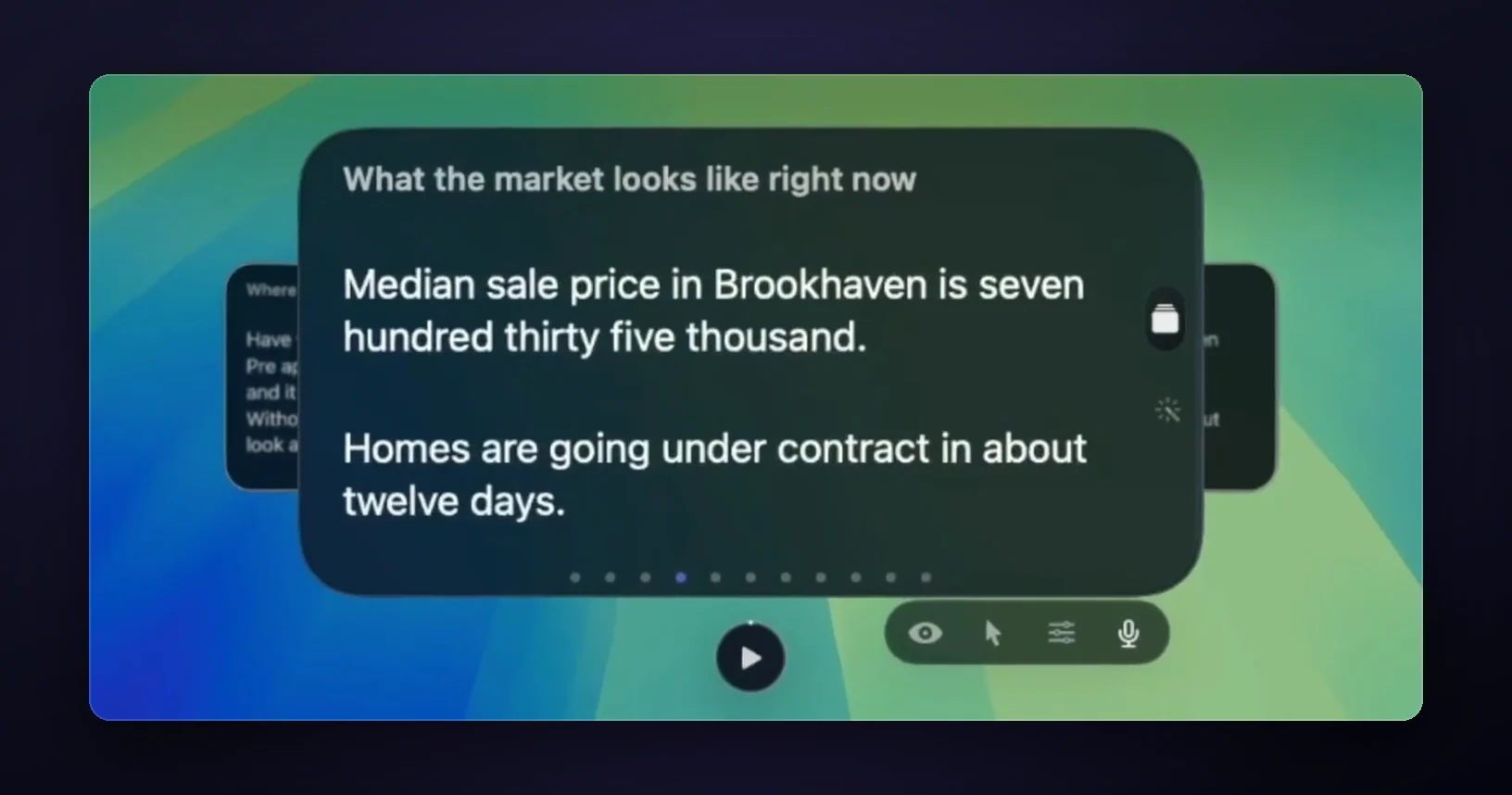
GlideRail does it with cards. Cue Mode (Pro) turns your prep into cards, one per topic. ⌘[ and ⌘] change cards from any app while Cue Mode is open, so Zoom or your demo can stay in front.
On an Apple Silicon Mac, Live Rail (Pro) listens on your Mac, and when someone says words that match a card, it offers that card in a small chip. One click or ⌘↩ opens it. It never changes the card by itself, and no audio leaves your Mac. It matches words, not meaning, so it will miss a question asked in different words.
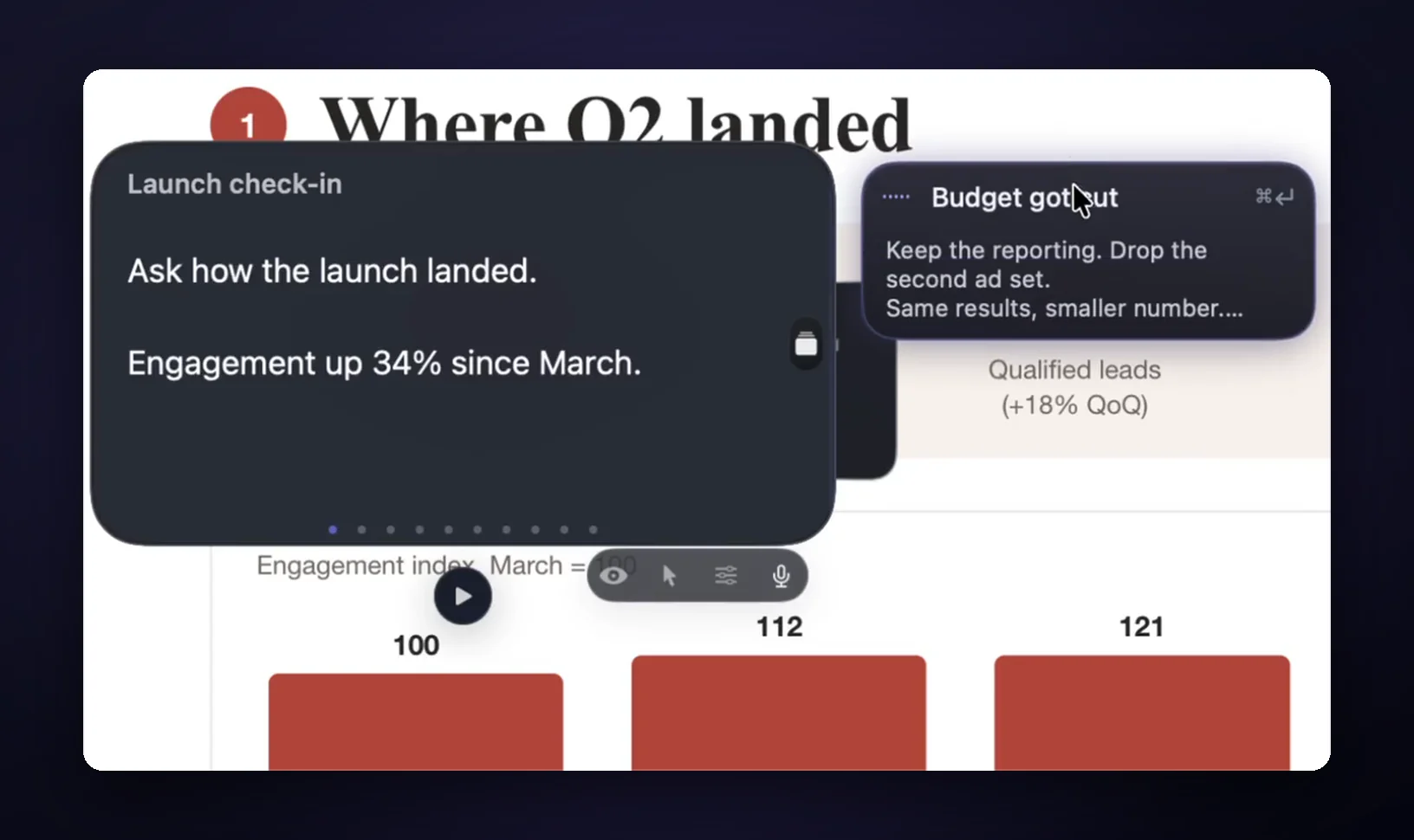
The window floats anywhere you drag it, on any screen, and click-through (Pro) lets your clicks pass through to the app underneath while you demo.
A 10-minute setup before your next call
These steps use GlideRail, and the first three work with any app on this page.
- Write five headings the way a buyer would say them: "What does it cost?", "How long does it take?", "Who else uses this?", "What if we cancel?", "What's the next step?"
- Under each one, write three short lines, with numbers exact and everything else in cue words.
- Drag the window to the top of your screen, just under the camera, and make it narrow.
- Paste it all into a new note, press Split into sections when GlideRail offers it, then open Cue Mode.
- Turn on Invisible. It's a Pro feature, and the 7-day free Pro trial covers it.
- In Zoom, go to Settings, Share Screen, Advanced, and set Screen capture mode to "Advanced capture with window filtering". On some Macs, Zoom's default Auto mode can include GlideRail's windows. The Zoom setting guide shows where it is.
Press ⌘' any time to hide or show every GlideRail window. For a list of what to write on the cards, the sales call script has one you can copy, and the guide to sales call notes covers what to keep in view for a demo.
What none of these can do
None of these apps can hide your screen from a camera. A phone pointed at your monitor sees everything. Veilnote's listing says so, and it's true of every app here, GlideRail included. None of them hides your eyes moving, either (the FAQ below has what helps).
Live Rail needs Apple Silicon, and invisibility, Cue Mode and Live Rail are all Pro. On the free version your windows show in shares like any other window. There's no Team plan.
Which one should you pick?
- You share one window, or you're on camera with no share: use a doc. It's free.
- You want to try this for nothing: NotchPrompter.
- You read a script and want something cheap: Veilnote or GlassCue.
- You're on sales calls every week, you share your whole screen, and buyers jump between topics: that's what GlideRail is for. Plans are $19.99 a month, $99 a year ($8.25 a month, billed yearly) or $249 once.
- You're on camera once a month: don't pay anyone.
FAQ
Can the client tell I'm looking at my talking points?
They can see your eyes move, so keep the window close to the lens and the text short. A few words per line reads as a glance. A full sentence reads as reading. Nobody has run a good independent test on this, so practice once with a friend on a call.
Will my talking points show in the Zoom recording?
Zoom records what you share. If your notes are outside a one-window share, they aren't in the file. In a full-screen share, GlideRail with Invisible on stays out of the recording once Zoom's capture mode is "Advanced capture with window filtering".
Does this work on Google Meet and Teams too?
Yes. GlideRail's invisible windows stay out of Meet and Teams shares and recordings, and neither needs a capture setting changed. The Zoom setting above is the one condition. See the Meet guide and the Teams guide.
Is it dishonest to use notes on a sales call?
No. They're your own prep, the same as a pad on your desk. Nothing writes your answers. If a client asks what's on your screen, tell them. And if someone's rule covers tools on calls, follow the rule.
Does GlideRail write what I say?
No. It shows what you wrote, and it adds nothing of its own. Live Rail only offers cards you made, and only when the words match.
Try it on one call
Download GlideRail free. The free version is the whole editor and library. Every download comes with a 7-day free Pro trial, so you can run your cards on a real call this week, and if you buy later there's a 30-day money-back guarantee.
Written by Takumi, maker of GlideRail. Last updated November 9, 2026.