How to Keep Notes on Microsoft Teams Without Anyone Seeing Them (Mac)
Updated 2026-10-03 · 4 min read
Short answer: In Teams, people see your camera and whatever you share. Share a single window instead of your screen and notes elsewhere stay private. For PowerPoint, PowerPoint Live shows your speaker notes to you while attendees see only the slides. To share your whole screen with notes in view, use notes invisible to screen capture, like GlideRail.
Microsoft Teams gives you more ways to present than most call apps, and two of them keep your notes private for free. This guide covers those, then the setup for sharing your whole screen with notes still in view, on a Mac with the new Teams app.
A disclosure first: I make GlideRail, a Mac notes app whose windows are invisible to screen sharing. It's the last option. The first ones cost nothing.
What people on Teams can see
Without sharing, people see your camera, your name and the chat. Teams doesn't show anyone the other windows on your Mac.
When you share, Microsoft is blunt about the full-screen option: it shows "your entire screen, including notifications and other activity" (Microsoft Support). Every visible window, notes included, goes to the meeting. Sharing a single window or presenting through PowerPoint Live is how you keep the rest of your screen to yourself.
Option 1: Share a window
Select Share in the meeting controls and pick the one window you want to show, such as a browser, Excel or a design tool, instead of your screen. Your notes can sit anywhere else.
Where it breaks: one window means one app. Switching to another app mid-meeting means stopping and sharing again, which is awkward during a live demo.
On a Mac, the first time you share, macOS asks you to let Teams record your screen. Allow it and reopen Teams; it's a one-time step. Teams also has a Use macOS content sharing option under Settings, General, Screen sharing, which hands sharing to the Mac's own picker.
Option 2: Present slides with PowerPoint Live
If you're presenting a deck, use PowerPoint Live instead of sharing your screen. Select Share, then pick the presentation under PowerPoint Live. In presenter view you see your speaker notes beside the slide, and attendees see only the slides.
Where it breaks: it covers the deck and nothing else. The notes sit off to the side rather than under your camera, and they hold what you wrote per slide, not the answers to questions people ask out of order.
Presenting PowerPoint the classic way works too: with Presenter View on one display and the slideshow on another, share only the slideshow window.
Option 3: Notes that are invisible to screen sharing
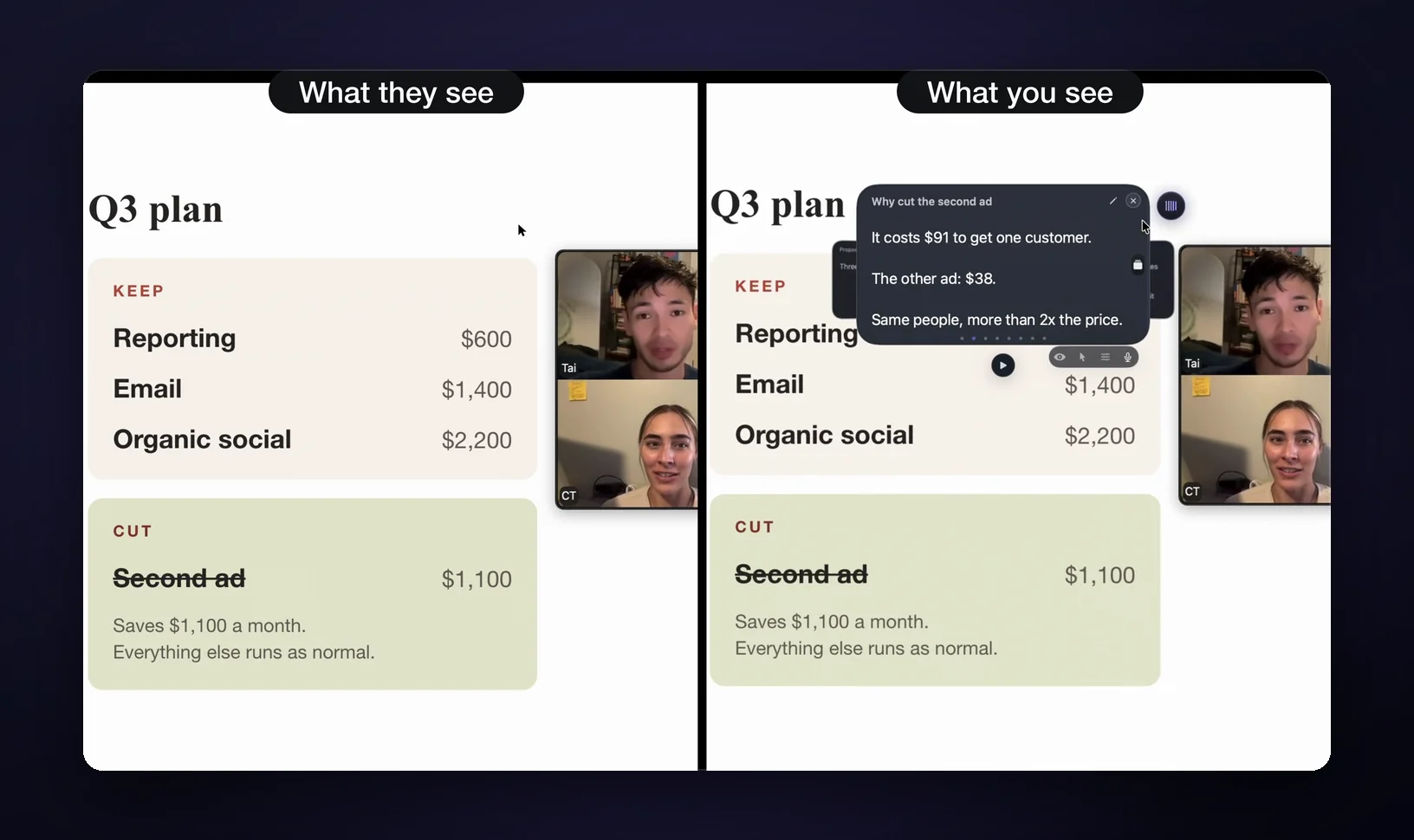
When you need to share your whole screen and move between apps, the notes have to stay on screen without being captured. GlideRail's windows are invisible to screen capture (a Pro feature): a Teams screen share leaves them out, and so do Zoom, Meet, Loom, OBS and QuickTime.
Set up notes Teams can't capture
- Put your notes in GlideRail. Download it from gliderail.app and paste your prep into a note, or drag in a Word file, PDF or other document. The notes app is free, with no account.
- Turn on invisibility. Click the eye in the note window. It's a Pro feature, covered by the 7-day free Pro trial.
- Place the window under your camera. Keep it narrow so your eyes barely move while you read.
- Share your screen. In Teams, select Share and choose your screen. If macOS asks, allow Teams to record your screen; it's a one-time step.
- Switch apps freely. People see everything you share except your notes. Press ⌘' any time to hide or show every GlideRail window.
Notes that keep up with the meeting
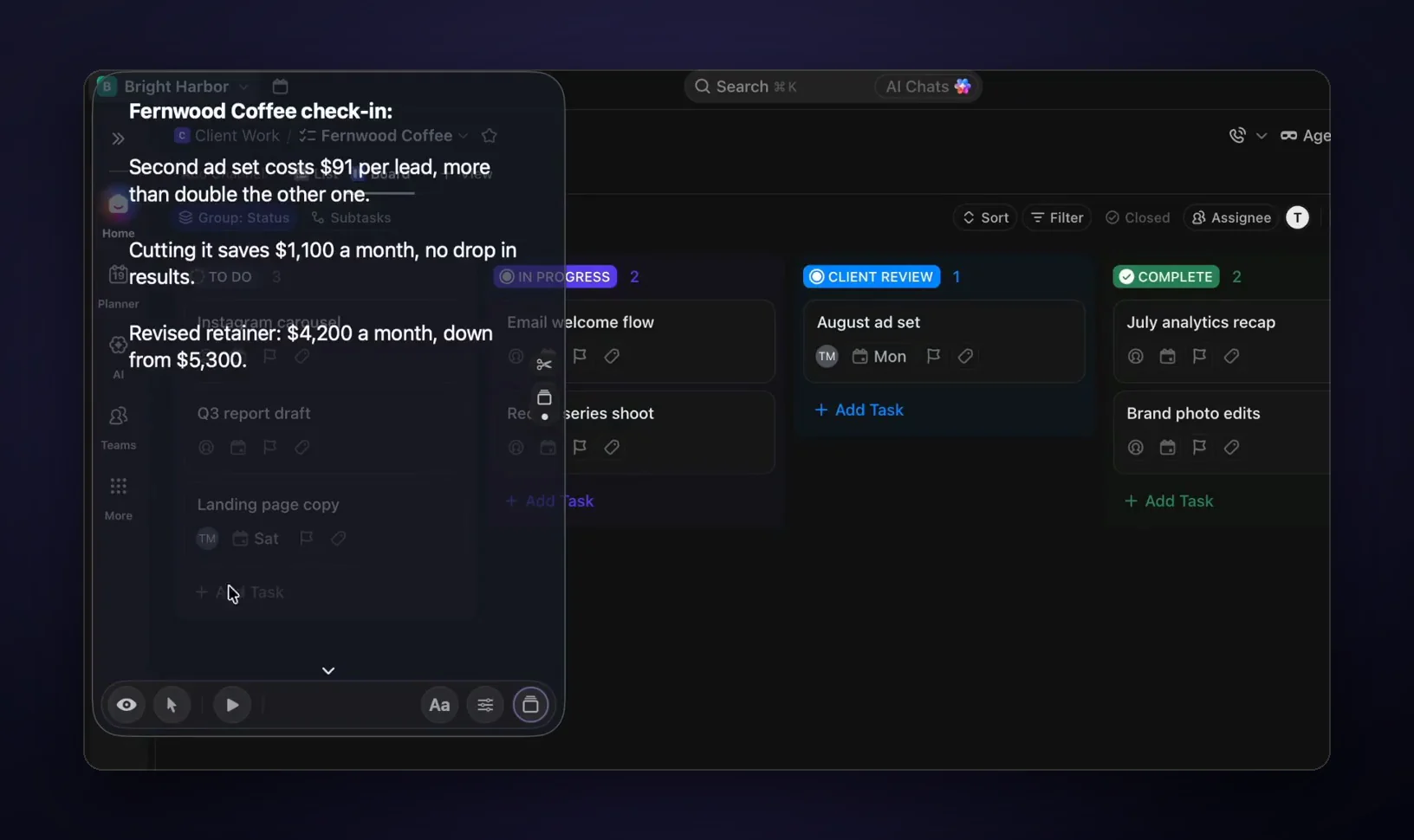
Teams meetings rarely follow the agenda. GlideRail's Cue Mode (Pro) turns your note into cards, one per topic, that you jump between with ⌘1 to ⌘9 or a swipe instead of scrolling.
On an Apple Silicon Mac, Live Rail (Pro) listens to the meeting on your Mac, your microphone and the meeting audio, and when someone raises a topic that matches one of your card headings, it offers that card. One click jumps; it never moves on its own. No audio is saved or sent anywhere, and it only shows what you wrote.
And if you're demoing software, click-through (⇧⌘E) lets your clicks pass through the notes window to the app underneath, so the notes can sit right on top of what you're showing. The sales call guide covers the full demo setup.
Which option should you use?
| What you're presenting | Best option |
|---|---|
| One app | Share a window |
| A PowerPoint deck | PowerPoint Live (notes visible only to you) |
| Several apps, or a live demo | Invisible notes, sharing your whole screen |
| No sharing at all | Any notes, placed under the camera |
The limits, plainly: invisibility, Cue Mode, Live Rail and click-through are GlideRail Pro features, Live Rail needs Apple Silicon, and no software hides your notes from a camera pointed at your screen.
FAQ
Can people on Teams see my other windows?
Only if you share your screen. Sharing your screen shows everything on it, including notifications. Sharing a window shows only that window, and PowerPoint Live shows only your slides. Without sharing, people see just your camera.
Can attendees see my notes in PowerPoint Live?
No. In PowerPoint Live's presenter view, you see your speaker notes and attendees see only the slides. It covers the deck, though, not notes about anything else.
Why does Teams ask for screen recording permission on my Mac?
macOS requires that permission before any app can share your screen. Teams asks the first time you share; allow it, and reopen Teams if it asks you to.
Does GlideRail work with Microsoft Teams?
Yes. GlideRail works at the Mac level, not as a Teams add-on, so it works the same in any call app. With invisibility on (Pro), a screen share leaves its windows out every time. The same setup works in Zoom and Google Meet.
Do the voice features need anything special?
Live Rail and Voice Follow need an Apple Silicon Mac. Live Rail also asks for macOS screen recording permission so it can hear the meeting audio, not only your microphone. Everything is processed on your Mac.
Written by Takumi Mitchell, maker of GlideRail. Last updated October 3, 2026.