How to Keep Your Talk Track and Battlecards in View on Sales Calls
Updated 2026-10-03 · 5 min read
Short answer: Keep prompts, not a script: your agenda, discovery questions, three proof points with numbers, pricing, and one short card per objection, named the way prospects say it. Put them right under your camera. During a demo, share only the product window, or use notes that are invisible to screen sharing, like GlideRail, so you can share your whole screen and click straight through your notes.
The number you need on a sales call is never on the screen when the prospect asks for it. You knew it this morning. Now you're saying "let me pull that up" while they watch you search. This guide is about having it in view, on a Mac, without the prospect seeing your notes when you share your screen.
A disclosure: I make GlideRail, a Mac notes app whose windows are invisible to screen sharing. It shows up in the setup section. The rest applies to any notes.
Prompts, not a script
Most reps don't read a script word for word, and the ones who do sound like it. In HubSpot's survey of daily cold callers, 52% use a script but adapt it significantly for each call, while 28% follow one strictly. That was phone calls, but on video it matters more: reading shows in your eyes, not just your voice.
So keep prompts: a word or a number that starts the sentence you already know how to finish.
What to keep in view
- The agenda. Three lines you say in the first minute, so the call has a shape.
- Discovery questions. Five or six, in the order you'd like to ask them. Tick them off as you go.
- Three proof points with numbers. A customer, a result, a figure. These are what people forget under pressure.
- Pricing and packaging. The exact numbers and what each tier includes, so you never guess out loud.
- One card per objection. "Too expensive." "We already use another tool." "I need to talk to my boss." Each with two or three lines: the answer, a proof point, and a question to hand it back.
- Next steps. What you'll ask for at the end, and the dates you can offer.
Competitive objections deserve their own cards. Sales teams already rely on battlecards: in Crayon's survey, 78% of competitive intelligence leaders said they give them to their sales teams. On a live call, a full battlecard is too much. Keep the two lines you'd actually say.
Organize by moment, not by order
Sales calls don't follow your outline. The prospect asks about pricing in minute two, or raises a competitor during discovery. Notes written as one long page make you scroll while they wait.
Instead, give each moment its own section: Agenda, Discovery, Proof, Pricing, then one section per objection. Then jumping to the right one is one action, not a search.
During the demo
A demo is where notes usually get exposed, because that's when you share your screen. You have two ways to keep them private:
- Share only the product window. Zoom, Google Meet and Microsoft Teams all let you share one window. Your notes stay anywhere else. The catch is that switching to a second app, such as a slide or a spreadsheet, means re-sharing.
- Use notes that stay out of screen shares. GlideRail's windows are invisible to screen capture (a Pro feature), so you can share your entire screen, move between apps, and keep the notes in view. With click-through on, the notes can sit right on top of the product and your clicks go straight through to it.
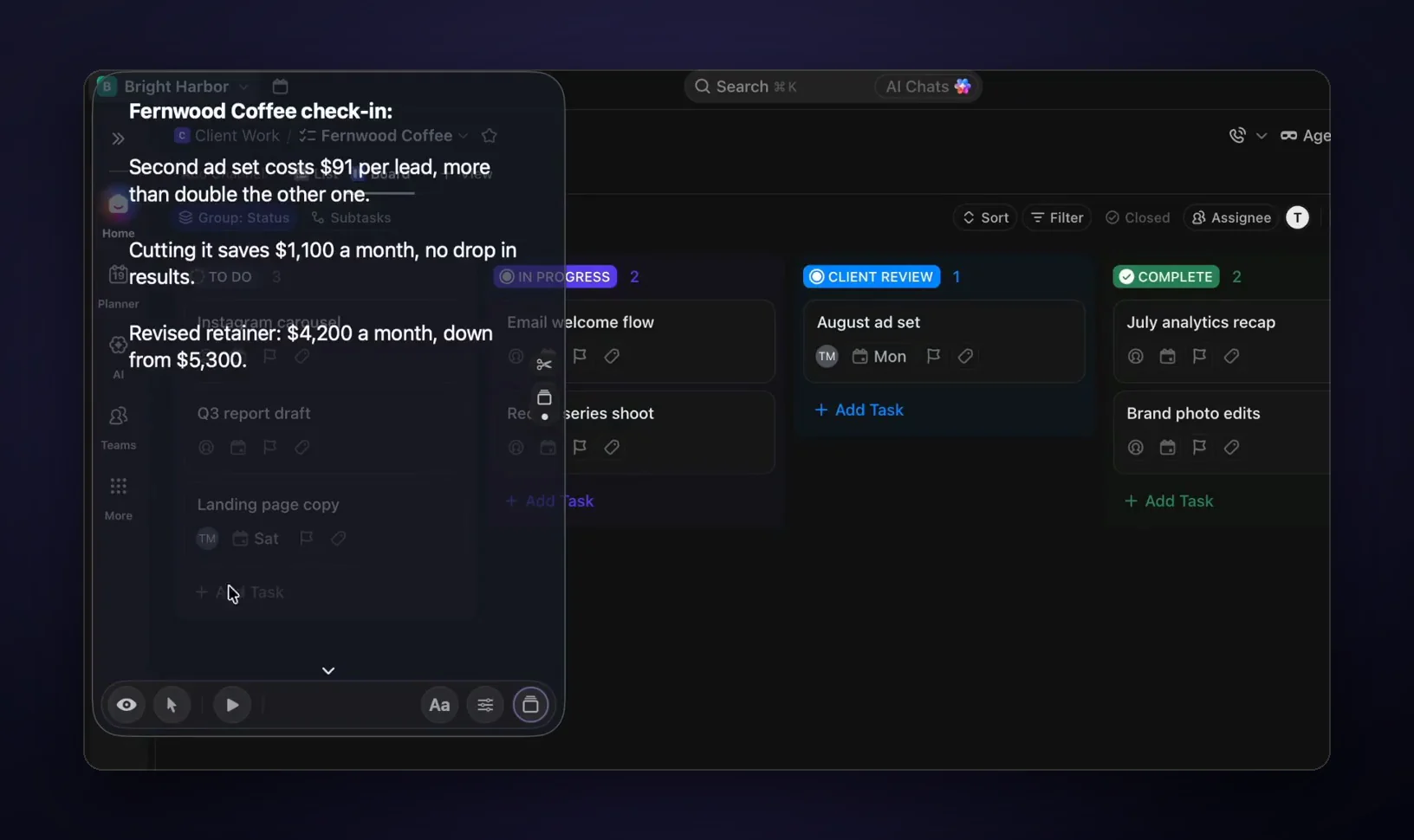
Set up sales call notes on a Mac
- Make one note per call type. In GlideRail, start each section with
#and a heading: Agenda, Discovery, Proof, Pricing, then one heading per objection, written the way prospects say it ("Too expensive", "We already use a tool for this"). The notes app is free. - Put the window under your camera. Narrow, large text, as close to the lens as you can. During a demo, drag it beside or over the product window.
- Turn on Cue Mode. Each section becomes a card you jump to with ⌘1 to ⌘9 or a swipe, instead of scrolling. Cue Mode is Pro, included in the 7-day free trial.
- Turn on invisibility. Click the eye in the note window, and your notes stay out of every screen share. On Zoom, set the screen capture mode to "Advanced capture with window filtering" first (the Zoom guide has the steps).
- Turn on click-through for demos. Press ⇧⌘E and your clicks pass through the notes window to the product underneath. A View Lens appears where you hover, so you can still scroll your notes.
- Update the cards after each call. Every new objection you heard becomes a new card. After a few weeks, the notes cover most of what prospects say.
Live Rail: the objection card comes up when they raise it
On an Apple Silicon Mac, Live Rail (Pro) listens to the call on your Mac, your microphone and the prospect's audio, for words that match your card headings. When the prospect says the budget got cut, the card you named "Budget got cut" appears as a suggestion. One click, or ⌘↩, and you're on it. It never switches cards by itself, and no audio is saved or sent anywhere.
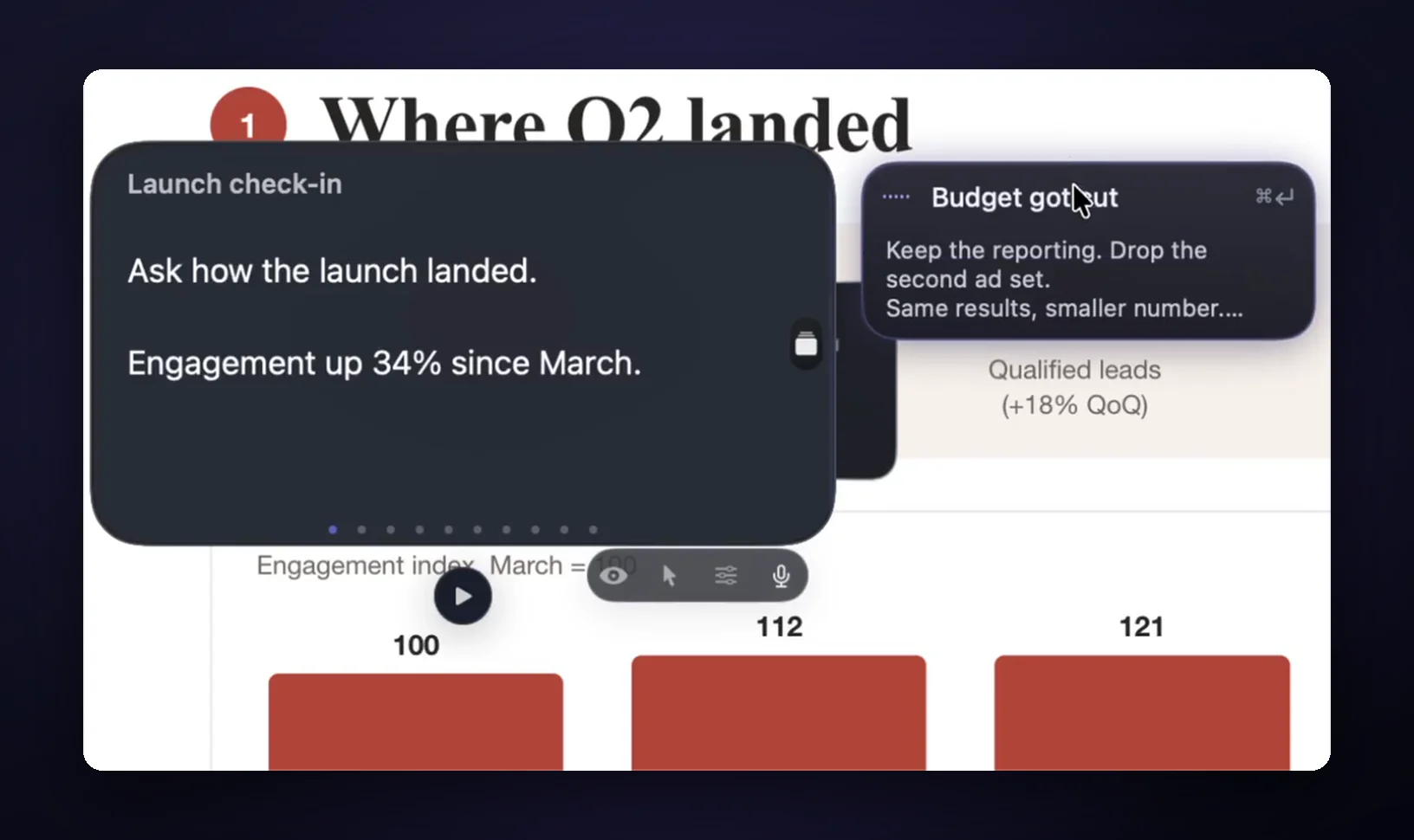
That's why the objection headings matter: name each card the way prospects actually say it, and Live Rail finds it. It only brings up what you wrote. Nothing in GlideRail writes your answers.
Mistakes that cost the room
- A full script. You'll read it, and they'll hear it.
- Notes in your screen share. One full-screen share with your pricing floor on it is a negotiation you've already lost.
- Scrolling for an answer. One card per objection fixes it.
- Letting AI answer for you. A tool that writes lines live puts words in your mouth that you haven't checked. Your prospect is buying your judgment.
FAQ
Should sales reps use a script on calls?
Use prompts instead. Most reps adapt their script on every call, and reading word for word sounds flat. Keep your opener, discovery questions, proof points, pricing and objection answers as short prompts, and say the rest in your own words.
How do I hide my notes during a sales demo?
Share only the product window, or use notes that are invisible to screen sharing, like GlideRail Pro, and share your whole screen. On Zoom, set its screen capture mode to "Advanced capture with window filtering" first.
What is a sales battlecard?
A short reference on a competitor or objection: what they'll say, how you answer, and the proof. For live calls, cut each one to the two or three lines you'd actually say, and keep it one jump away.
Does GlideRail record or transcribe my calls?
No. GlideRail doesn't record calls or keep transcripts. Live Rail listens on your Mac in real time to match words to your card headings, and nothing is saved or sent anywhere.
Does it work with Zoom, Google Meet and Teams?
Yes. GlideRail works at the Mac level, so it doesn't matter which call app the prospect uses. See the guides for Zoom, Google Meet and Microsoft Teams.
Written by Takumi Mitchell, maker of GlideRail. Last updated October 3, 2026.