How to Keep Notes on Zoom Without Anyone Seeing Them (Mac)
Updated 2026-10-03 · 6 min read
Short answer: On a normal Zoom call, nobody sees your screen, so any notes are private. It changes when you share. Share one window or a portion of your screen and your notes stay out of it. To share your whole screen with notes in view, use notes that are invisible to screen capture, like GlideRail, and set Zoom's screen capture mode to "Advanced capture with window filtering".
Zoom only shows people two things: your camera and whatever you share. So the question isn't really "can they see my notes?" It's "what happens when I click Share Screen?" Here's every option on a Mac, what it costs, and exactly where it breaks.
One disclosure first: I make GlideRail, a Mac notes app whose windows are invisible to screen sharing. It's the paid option near the end, so weigh that section knowing it's mine. Most calls never need it.
What other people on Zoom can see
Without a share, people see your camera, your name, your mute status and the chat. Nothing in Zoom lists the windows open on your Mac, and Zoom removed its old attendee attention tracking back in April 2020.
When you share, it depends on what you pick. Share your whole screen and, in Zoom's words, participants "can see everything that you view on your desktop", notes included. Recordings work the same way: a recording of a share captures the shared screen or window, so notes that were visible in the share end up in the file.
Option 1: Share one window or part of your screen
The free fix is to share less. In the Share Screen picker, choose the one window you need (your slides or your browser) instead of your desktop, or choose Portion of Screen, which shares only the area inside a green border. Put your notes outside that border and they're out of the share.
Where it breaks: the moment you need a second app. Switching from slides to a browser means stopping and starting the share, and on a live demo that's an awkward pause. A portion share also pins you to one rectangle of your screen.
For a single deck, this is the right answer. For a demo that moves between apps, keep reading.
Option 2: Zoom's own notes
Zoom has a private notes panel. The current version, My Notes, opens from the My Notes icon at the top of the meeting window, and the notes "aren't automatically shared with meeting or webinar hosts or participants". It needs a paid Zoom plan (Pro or higher, or a My Notes account), app version 6.7.5 or newer, and macOS 14.2 or later.
Where it breaks: the panel sits beside the video, so your eyes travel sideways away from the camera every time you read. It's built for taking notes during the call, not for reading notes you prepared. And it only exists in Zoom, not in Meet, Teams or a Loom recording.
Option 3: Paper or a second screen by the camera
Paper taped right under your webcam can't appear in any share, and your eyes stay close to the lens. It holds about ten lines and can't change mid-call.
A second monitor placed directly under the camera works too, with any notes app. Its risk is the share picker: under pressure, you have to remember which screen is safe to share. One wrong click and the call is reading your prep.
Option 4: Notes that are invisible to screen sharing
The last option keeps your notes on the screen you're sharing, and still out of the share. GlideRail's windows are invisible to screen capture (a Pro feature): Zoom shares and recordings show your whole screen without them, and the same goes for Meet, Teams, Loom, OBS and QuickTime.
On Zoom, it takes one setting to work every time: screen capture mode set to "Advanced capture with window filtering". Zoom's default "Auto" mode can include GlideRail's windows on some Macs; with window filtering, they never appear. The steps below include it.
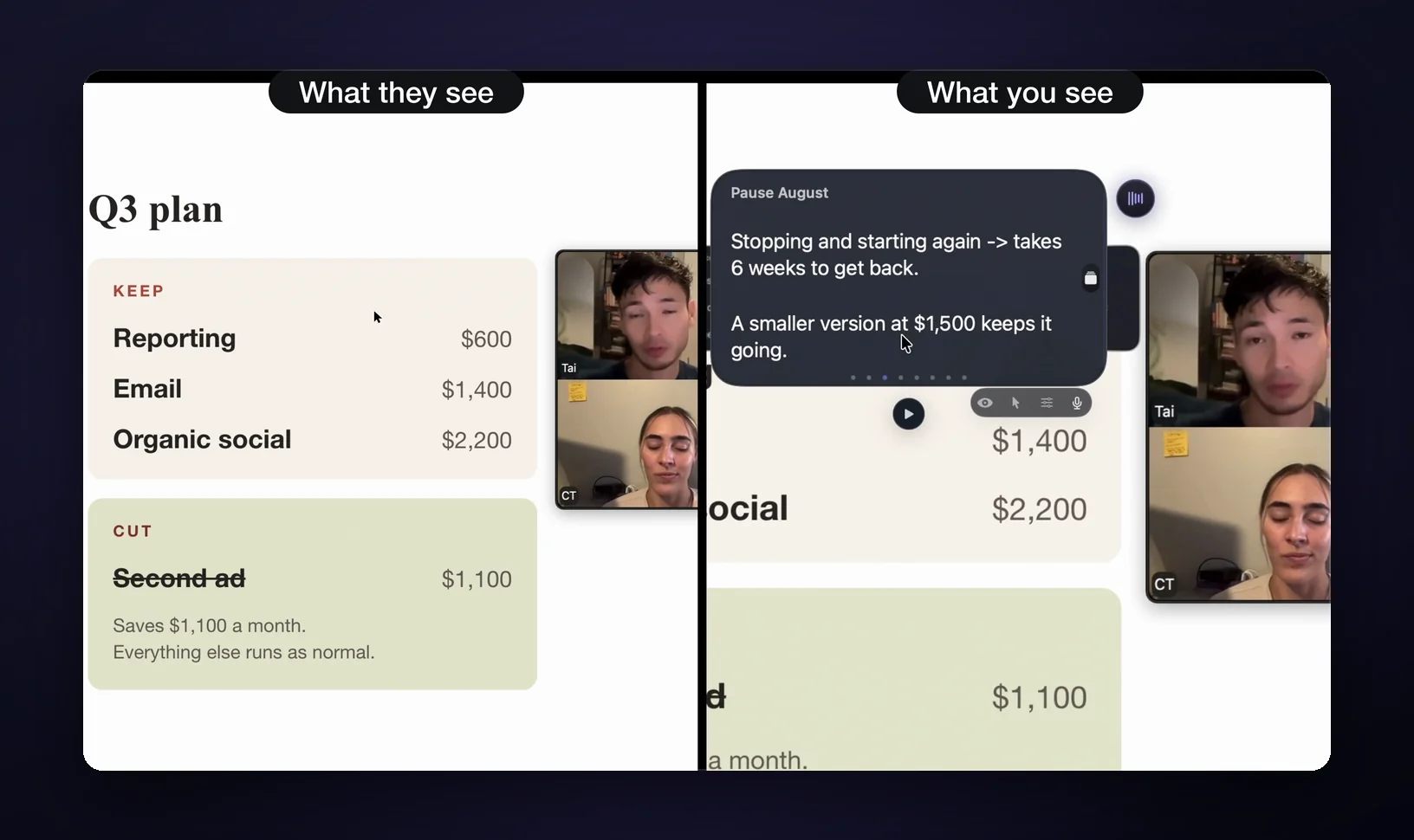
Set up notes Zoom can't capture
- Put your notes in GlideRail. Download it from gliderail.app, then paste your prep into a note or drag in a document (PDF, Word, Pages, Markdown). The notes app is free and needs no account.
- Turn on invisibility. Click the eye in the note window. It's a Pro feature, covered by the 7-day free Pro trial.
- Put the window right under your camera. Make it narrow. The closer the words sit to the lens, the less your eyes move while you read.
- Set Zoom's screen capture mode. In the Zoom app, click your profile picture, then Settings, Share Screen, Advanced. Set "Screen capture mode" to "Advanced capture with window filtering".
- Share your entire screen. People see every app you open except your notes. Press ⌘' any time to hide or show every GlideRail window.
Live Rail: the right note comes up when the topic does
Real calls don't follow the order you wrote. The client asks about budget while you're still on your intro. Cue Mode (Pro) turns your note into cards: type # and a heading to start each section, then jump between them with ⌘1 to ⌘9 or a swipe instead of scrolling.
Live Rail (Pro, Apple Silicon) goes one step further. It listens to the call on your Mac, both your microphone and the call audio, and when someone says words that match one of your headings, it offers that card in a small chip. One click, or ⌘↩, and you're there. It never flips a card by itself; a suggestion fades after about 30 seconds. Name your sections the way people talk ("Budget got cut", "Pricing", "Timeline") and the card is waiting when they ask. The sales call and interview guides have examples.
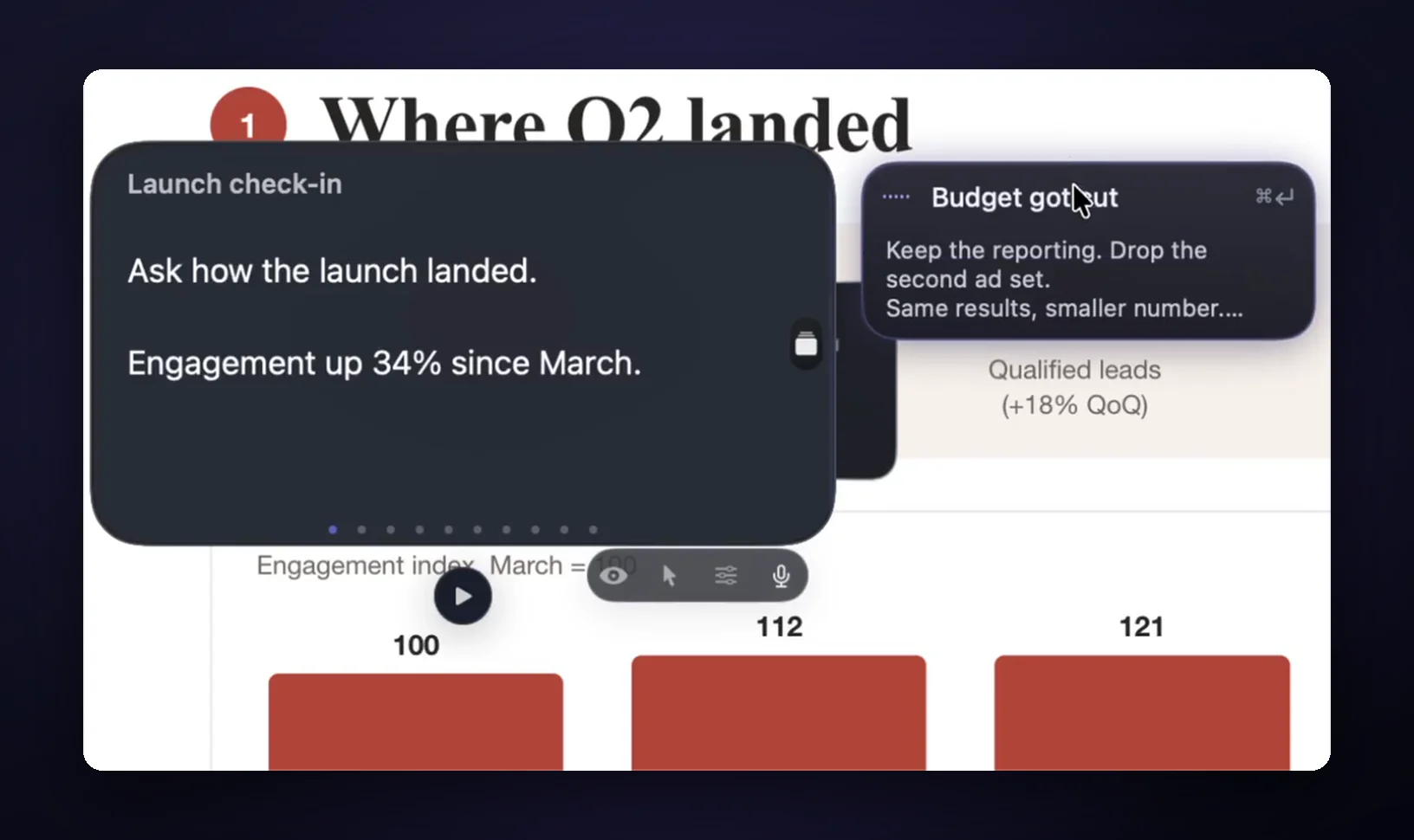
The listening happens on your Mac: no audio is saved or sent anywhere, and nothing writes your answers. Live Rail only brings up notes you wrote.
Three limits, plainly. Invisibility, Cue Mode and Live Rail are paid; on the free tier your windows are visible in shares. The voice features need an Apple Silicon Mac; Intel Macs get cards and plain auto-scroll. And no software hides from a phone camera pointed at your screen.
Which option should you use?
| Method | Cost | Eye line | Survives a full-screen share? | Keeps up when the talk jumps? |
|---|---|---|---|---|
| Window or portion share | Free | Depends where notes sit | Notes stay outside the share | No |
| Zoom My Notes | Paid Zoom plan | Poor (side panel) | Private by design | No |
| Paper by the camera | Free | Good | Yes, it's off-screen | No |
| Second monitor | A monitor | Depends on placement | Only if you share the other screen | No |
| GlideRail | Free app; invisibility and Live Rail are Pro | Good, sits anywhere | Yes, with the capture mode set | Yes, on Apple Silicon |
Whatever you choose, put the words next to the lens. Notes at the bottom of the screen give you the downward glance everyone recognizes. Notes beside the camera look like eye contact.
FAQ
Can other people on Zoom see my notes?
Not unless you share them. Without a share, people only see your camera. If you share your whole screen, they see every visible window, notes included; share a single window or a portion of your screen and only that shows. GlideRail's windows are left out of the share when invisibility is on.
What Zoom setting does GlideRail need?
One: Zoom's screen capture mode. In the Zoom app, go to Settings, Share Screen, Advanced, and choose "Advanced capture with window filtering". With it set, GlideRail's windows never appear in your Zoom shares or recordings. Invisibility itself is a Pro feature; on the free tier, windows are visible.
Does Zoom tell the host which apps I have open?
No. The host sees your name, video, audio status and whatever you share. Zoom's old attendee attention tracking, which showed whether the Zoom window was in focus, was removed in April 2020.
Will my notes show up in a Zoom recording?
Only if they were visible in your share. Recordings capture the shared screen or window, so notes that were in the share, even for a few seconds, are in the file. Notes kept out of the share stay out of the recording.
Is it unprofessional to read notes on a Zoom call?
Having notes isn't the problem; eye movement is. People notice eyes drifting away from the camera, not the fact that you prepared. Put the notes right under the lens and keep them short, and reading looks like speaking.
Do these methods work in Google Meet and Microsoft Teams?
Mostly. Paper, a second monitor and GlideRail don't care which app the call is in, and both Meet and Teams let you share a single window instead of your screen. Zoom My Notes is Zoom only. See the Google Meet guide and the Microsoft Teams guide.
Written by Takumi Mitchell, maker of GlideRail. Last updated October 3, 2026.