What Is an Invisible Teleprompter? (2026 Explainer)
Published 2026-10-13 · 8 min read · Competitor facts last checked 2026-10-13
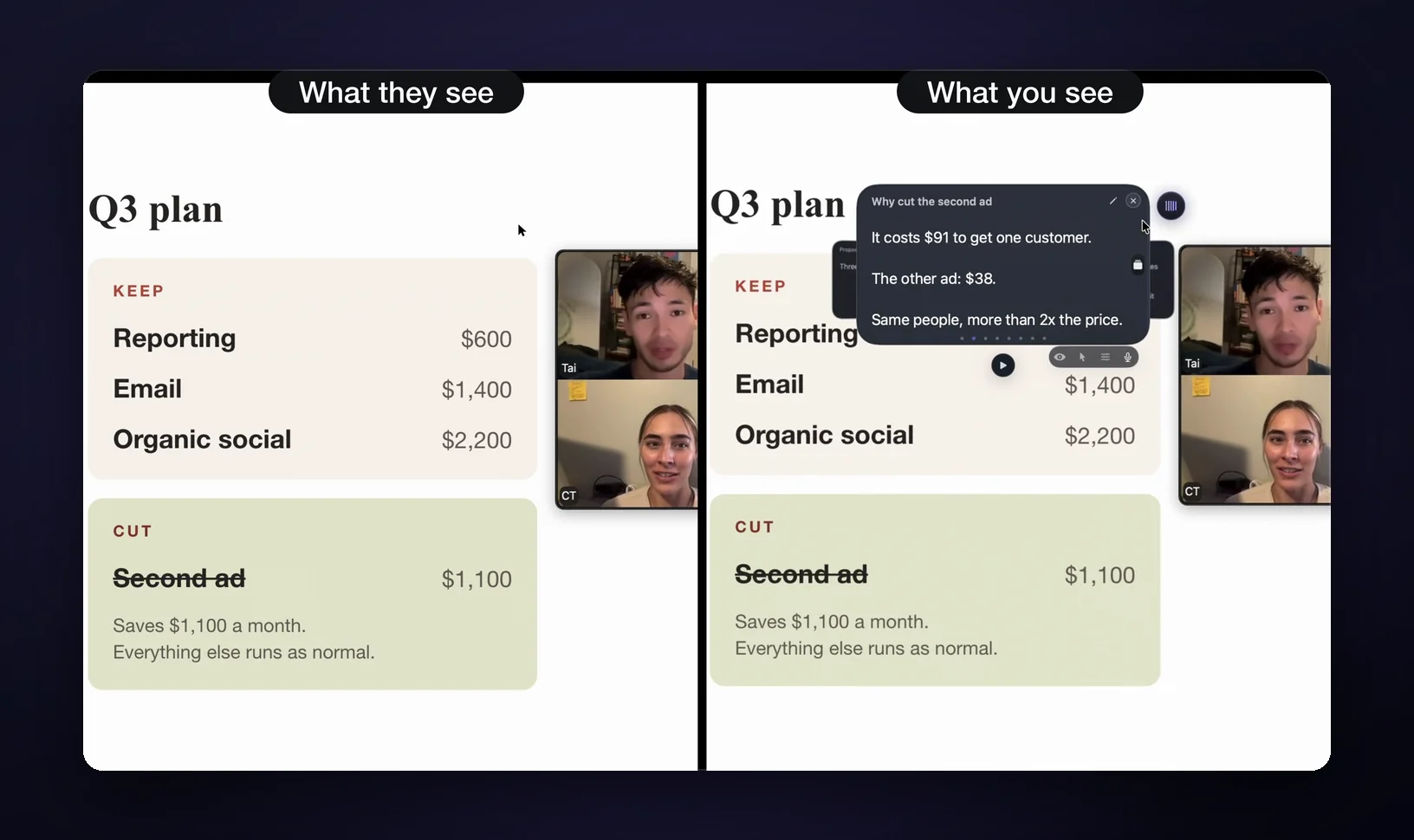
An invisible teleprompter is a Mac app that shows your notes in a window that screen capture cannot see. You read the notes on your screen; a Google Meet share, a Loom recording, or an OBS stream shows everything except them. No glass, no rig, no camera trick: the invisibility comes from a macOS window setting, not hardware. The limit: it fools software capture only, so a phone camera pointed at your physical screen still sees everything.
That's the whole category in four sentences. The rest covers how these apps differ from the prompters TV studios use, how the trick actually works, who uses one, and the caveat every app shares. A disclosure first: I created GlideRail, a conversation rail for Mac whose windows are invisible to screen capture, so read the app mentions with that in mind.
- How does an invisible teleprompter work?
- Notch strips vs floating windows
- Who uses one (and who shouldn't)
- The caveat every app shares
- The apps in the category
- FAQ
Hardware prompters fool the camera. Invisible teleprompters fool the screen.
A studio teleprompter is an optics trick. A sheet of beam-splitter glass sits in front of the camera lens; the presenter reads text reflected onto that glass while looking straight at the lens, and the lens doesn't image the text. That's how news anchors hold eye contact for an hour.
It solves a studio problem: one camera, one presenter, notes hidden from the lens.
Video calls flipped the problem, then scaled it. According to Microsoft's Work Trend Index, weekly meeting time for the average Teams user grew 252% between February 2020 and early 2022. And on a video call, your webcam sits an inch above your screen. It was never pointed at your notes in the first place.
What exposes your notes on a call is the screen share. The recording. The "can you share your screen real quick?" moment. An invisible teleprompter hides your notes from that layer instead: the pixels being captured, not the light entering a lens. If you're deciding between the two approaches, there's a longer breakdown at teleprompter vs hidden notes.
How does an invisible teleprompter work?
Nearly every invisible teleprompter pulls the same macOS lever: a window property called sharingType, which sets how much access other processes get to a window's content. Turn that access off, and when a call app or QuickTime asks macOS for the screen, the window isn't in the pixels they receive. The exclusion happens inside macOS, before the capture app ever sees a frame, which is why there's no plugin to install and nothing running inside the call app.
Zoom needs one setting. On some Macs, Zoom's default "Auto" screen capture mode can include these windows anyway; set the screen capture mode to "Advanced capture with window filtering" (Zoom, Settings, Share Screen, Advanced) and they stay out of the share. The Zoom guide walks through it.
The full story is in how invisible notes actually work on macOS.
Two body types: pinned strips and floating windows
Invisible teleprompters come in two body types: notch prompters, which pin one strip of scrolling text to the top of the built-in screen, and floating windows you can place anywhere. The invisibility itself is table stakes in this category, not a differentiator. The shape is the real choice.
Notch prompters pin one strip of scrolling text to the top of your laptop screen, around the camera notch. CueNotch and Notchie work this way, and Tellie hangs from the notch by default (it can also detach). Text near the lens keeps your eye line honest, and for a straight top-to-bottom read they're genuinely good.
Floating windows treat your notes as a movable surface. Moody offers a floating window next to its notch mode, and NotchPrompter and Textream float too: a window you place anywhere and resize to fit what you actually prepped.
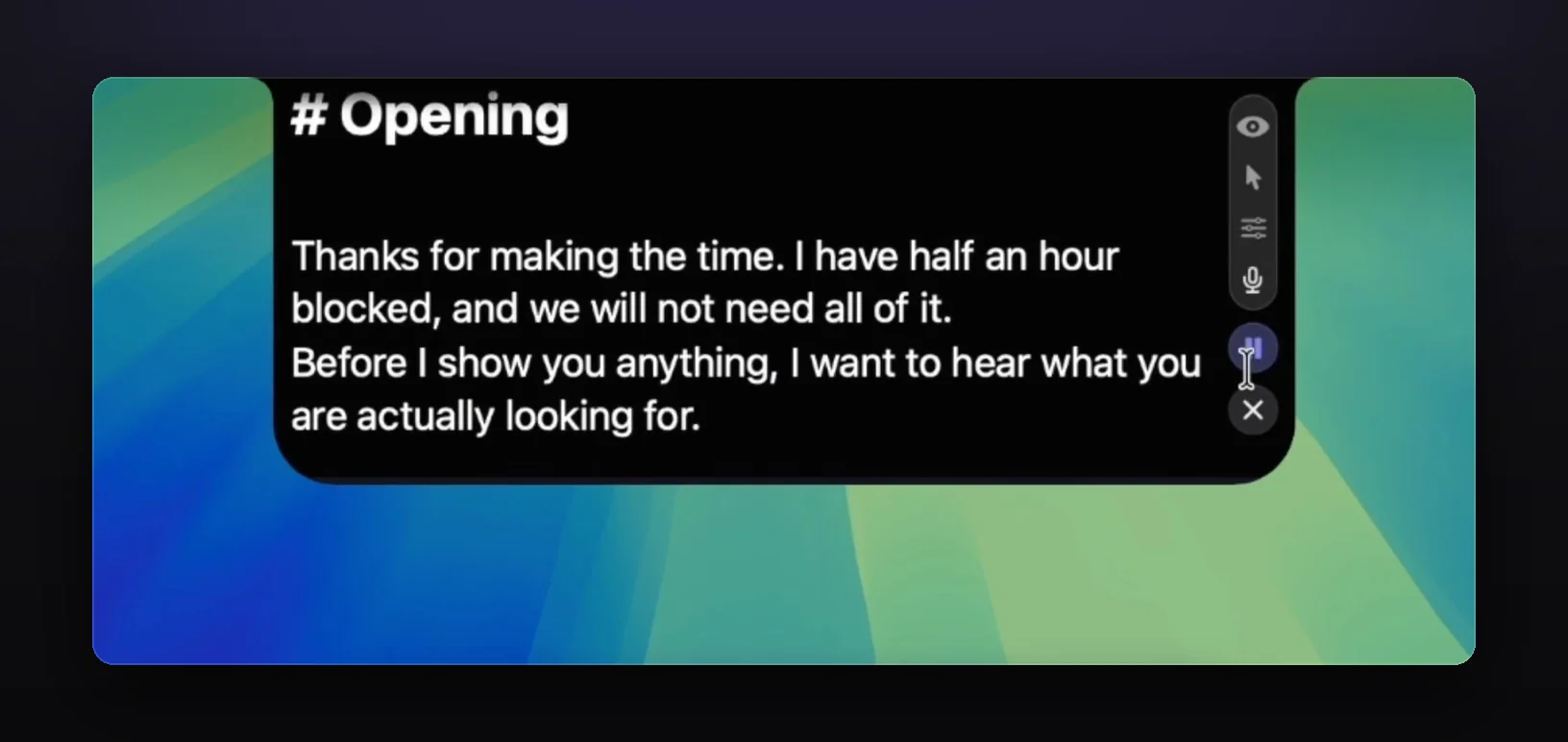
GlideRail uses the same macOS setting, but it's a different kind of tool: built for conversations that jump around, not one read from top to bottom. Its windows float anywhere (next to the webcam, on an external monitor, more than one at once), and with Pro your prep sits on cards you jump between as the conversation moves.
| Studio teleprompter | Notch prompter | Floating window | |
|---|---|---|---|
| What it is | Beam-splitter glass over the lens | A strip of scrolling text at the top of the built-in screen | A prompter window you place anywhere |
| Hidden from | The camera lens | Screen shares and recordings | Screen shares and recordings |
| Where notes live | On glass, in front of the lens | One box, pinned by the camera | Any screen, any size |
| Typical cost (Oct 2026) | A rig plus a monitor | Free tiers up to about $30 one-time | Free (open source) up to $39 one-time |
| Best for | Studio shoots | One-take reads, top to bottom | Desk setups, external monitors |
The honest version of the trade-off: for a 40-second Loom intro, a free notch strip is enough, and you should try one before paying anyone. The strip shows its limits on real calls (40 minutes, non-linear, the prospect asks about pricing at minute four), where one scrolling box means hunting mid-sentence. That's the problem a conversation rail exists to solve.
Who uses an invisible teleprompter?
Invisible teleprompter users are people whose competence gets judged live, on camera: sales reps running demos, job seekers in remote interviews, consultants whose funnel is a free strategy call, doctors on telehealth consults, and creators recording Loom walkthroughs or YouTube tutorials where the script has to land in one take. Not "everyone who presents."
Who it's not for: anyone presenting in a physical room (there's no capture to hide from, and the audience sees your eyes drop to a screen), anyone who presents twice a year (use a free strip), and anyone hoping software will write their answers live. That last one is a different category (AI answer-feeders) with a different reputation. An invisible teleprompter shows you your own prep. Nothing more.
The caveat every single app shares
Every invisible teleprompter shares one caveat: invisible to capture is not invisible, full stop. A phone camera pointed at your screen sees everything. So does a person standing behind you. If someone photographs your panel, your notes are in the photo. That's true of every app in this category, GlideRail included.
The second caveat is your eyes. They're on camera the whole time, and notes parked far from the webcam produce visible eye travel. The apps that take this seriously put text near the camera: notch apps by design, floating apps by letting you park a window there.
And one more: in some apps, invisibility itself is paid. Tellie's free tier stays invisible as of October 2026, while CueNotch's Ghost Mode (its screen-share hiding) is part of Pro. GlideRail's free version keeps the whole editor and library, but its windows stay visible (and are labeled that way) until you're on Pro. Check which side of that line your app sits on before your call, not during it.
The apps in the category (October 2026)
The invisible-teleprompter field in October 2026: CueNotch, Tellie, and Notchie at the notch; Moody with both a notch and a floating window; NotchPrompter and Textream at the cheap end. This is an explainer, not a review, so one line each, with prices from each app's site or App Store listing as of October 13, 2026:
- CueNotch ($29.99 lifetime or $7.99 a week, Mac App Store): notch strip with voice-synced scrolling and scripts in folders. Ghost Mode, which hides it from shares, is Pro.
- Tellie ($29 one-time): hangs from the notch; Pro adds voice-follow in more than 40 languages; the free tier stays invisible.
- Notchie ($29.99, Mac App Store): notch-only.
- Moody ($39 one-time, macOS 15 or later): notch or floating window, voice-activated scrolling, and cues you can jump between.
- NotchPrompter ($4.99, Mac App Store, source public on GitHub): a simple floating prompter.
- Textream (free, open source): notch overlay, floating window, or fullscreen. Fine for a first taste.
I left GlideRail, the one I created, off that list. It's a conversation rail for your Mac, a different kind of tool, and it costs more than anything above: $99 a year ($8.25 a month, billed yearly), $19.99 a month, or $249 once. The editor, the notes library and import are free; Pro adds invisibility, sticky notes, and cue cards you can jump between as the conversation moves (on Apple Silicon Macs, Live Rail listens and suggests the right card).
For an actual head-to-head with verdicts, see the best invisible notes apps for Mac.
FAQ
Is using an invisible teleprompter cheating?
Reading your own prep isn't cheating in a demo, a pitch, or a client call. It's what the notes app on your second monitor was already doing, minus the alt-tabbing. Interviews are the genuinely contested case, and worth thinking through honestly: is it cheating to use notes in a Zoom interview?
Can Zoom or Meet detect an invisible teleprompter?
The shared frame doesn't contain the window (on Zoom, with the screen capture mode set to "Advanced capture with window filtering"), and these apps install nothing inside Zoom or Meet (no plugin, no virtual camera), so there's nothing for the call software to flag. What can give you away is behavior: eyes tracking line by line far from the lens. Keep notes near the camera and glance, don't read.
Do invisible teleprompters work on external monitors?
Depends on the body type. Notch strips are built around the MacBook's notch and camera; some can move to another display, but they stay a strip at the top. Floating-window apps can place notes anywhere on any screen, which matters if your webcam sits on top of an external monitor. If you present from a desk setup, check this before buying.
Is there a free invisible teleprompter?
Yes. Textream is free and open source as of October 2026, and Tellie's free tier keeps the invisibility. GlideRail's free version has visible windows; invisibility is Pro. For a one-take intro, free genuinely covers you.
Does the hidden window show up in the recording afterward?
No. A window excluded from capture never enters the stream, so it's absent live and absent from the saved file. GlideRail's windows stay out of Zoom, Meet, Teams, Loom, OBS, and QuickTime, in live shares and recordings (on Zoom, with "Advanced capture with window filtering" on). For any other app, check which capture apps its vendor names.
If you want to watch the trick with your own eyes, download GlideRail free. The free version is free forever, and the 7-day free Pro trial covers invisibility; if you buy, there's a 30-day money-back guarantee. So install it today, prep your notes, and start the trial the day of a real call. Record ten seconds of your screen and play it back: your notes won't be there.
Written by Takumi Mitchell, maker of GlideRail. Last updated October 13, 2026.