How to See PowerPoint Notes While Presenting on Zoom (Mac)
Updated 2026-11-01 · 8 min read
Short answer: On one Mac screen, play the slide show in a window (Slide Show, Set Up Slide Show, "Browsed by an individual (window)"), then share only that window in Zoom. Your notes stay in PowerPoint's editing window, outside the share. If the call leaves the deck and you share your whole screen, keep your notes in GlideRail with invisibility on (a Pro feature) and set Zoom's screen capture mode to "Advanced capture with window filtering".
Play the PowerPoint slide show in a window, then share only that window in Zoom. On a Mac, open your deck and choose Slide Show, then Set Up Slide Show, then Browsed by an individual (window). Start the show, click Share Screen in Zoom and pick the slide show window, not your desktop. The call sees your slides. Your speaker notes stay in PowerPoint's editing window, which isn't part of the share. It's free, and it's one of the one-monitor setups on Zoom's PowerPoint help page.
A disclosure: I created GlideRail, a conversation rail for your Mac. It keeps what you prepared right by your camera and out of your screen share. It's the paid option near the end, for calls that don't stay inside one window. The free options come first, and for a deck and nothing else, they're enough.
What do people on Zoom see when you share PowerPoint?
People on Zoom see what you pick in the share window and nothing else. Zoom's Share Screen options let you share your entire screen or one application window, and the Advanced tab adds Portion of screen, which shares only the area inside a green border.
So the risk is a full-screen share. Share your entire screen with Presenter View open and the call sees Presenter View, notes and all. Zoom records the shared screen or window, so the recording gets the same picture.
How do you play a PowerPoint slide show in a window on a Mac?
PowerPoint calls the windowed slide show Browsed by an individual (window). It plays the show in a normal window instead of taking over the screen, so Zoom can share that one window and leave the rest of your Mac out. The steps come from Microsoft's Set Up Slide Show page and Zoom's PowerPoint page:
- In PowerPoint, choose Slide Show, then Set Up Slide Show.
- Under Show type, pick Browsed by an individual (window) and click OK.
- Start the show with Play from Start or Play from Current Slide. It opens in a window.
- In Zoom, click Share Screen, choose the PowerPoint slide show window and click Share.
Your notes live in the editing window's Notes pane, under the slide. If the pane is hidden, click Notes in the status bar at the bottom of the window (Microsoft's speaker notes guide). Run one test share before a call that counts and click through a few slides, so you know which slide's notes the pane is showing.
Where it breaks: the notes sit wherever the editing window sits, usually off to the side and away from the lens. And Zoom is sharing one window, so the moment you open a browser or a spreadsheet, the call doesn't see it until you start a new share.
Can you use Presenter View on one screen with Zoom?
Presenter View works on one Mac screen if you share only part of it. In PowerPoint for Mac, choose Slide Show, then Presenter View (Microsoft's Presenter View page). You get the current slide, a next slide panel and your notes. Then in Zoom, click Share Screen, open Advanced, pick Portion of screen, and fit the green border around the big current slide.
The call sees the slide. Your notes and the next slide stay outside the border, and unlike the windowed show, the notes follow each slide as you advance.
Where it breaks: the slide in Presenter View is smaller than your screen, so the call gets a smaller picture of it, and small text can look soft. If the border slips, the call sees whatever is under it. (There's also a trick that shares the full-screen slide show window hidden behind Presenter View. The slides post covers it.)
Does a second monitor keep PowerPoint notes off Zoom?
A second monitor is the setup Presenter View was built for. Zoom's PowerPoint page says to share the monitor showing the slide show; Presenter View then sits on your other monitor with your notes. If Zoom shares the wrong one, click Swap Displays in PowerPoint or New Share in Zoom.
The catch is your eye line. Notes on another screen pull your eyes off the camera every time you read, and on a sales call that looks like you're looking away from the buyer.
Does Zoom's slides as background show your speaker notes?
Zoom can put your camera video on top of your slides. In the share window, pick PowerPoint under Application windows and choose a layout such as In front or Over the shoulder (Zoom's slides as background page). It's a good look for a pitch.
But Zoom's page says nothing about speaker notes, so don't plan on reading them this way. And people on Zoom's web client see a normal screen share, without your video on the slides.
Why do PowerPoint notes show when you share your whole screen?
Every option above assumes you stay in the deck. Sales calls and demos rarely do. The buyer asks to see the product, or a client wants the spreadsheet behind slide 6. Now you need your whole screen shared, and any notes on it are in the share, Presenter View included.
The other limit is quieter. PowerPoint notes belong to slides. The pricing question comes up on slide 3 while your pricing notes are under slide 14, and your answers to the objections you expect don't belong to any slide at all.
Set up PowerPoint notes Zoom can't capture
GlideRail's windows are invisible to screen capture (a Pro feature). Share your entire screen and Zoom shows your slides and any app you switch to, but not your GlideRail notes. Recordings leave them out too.
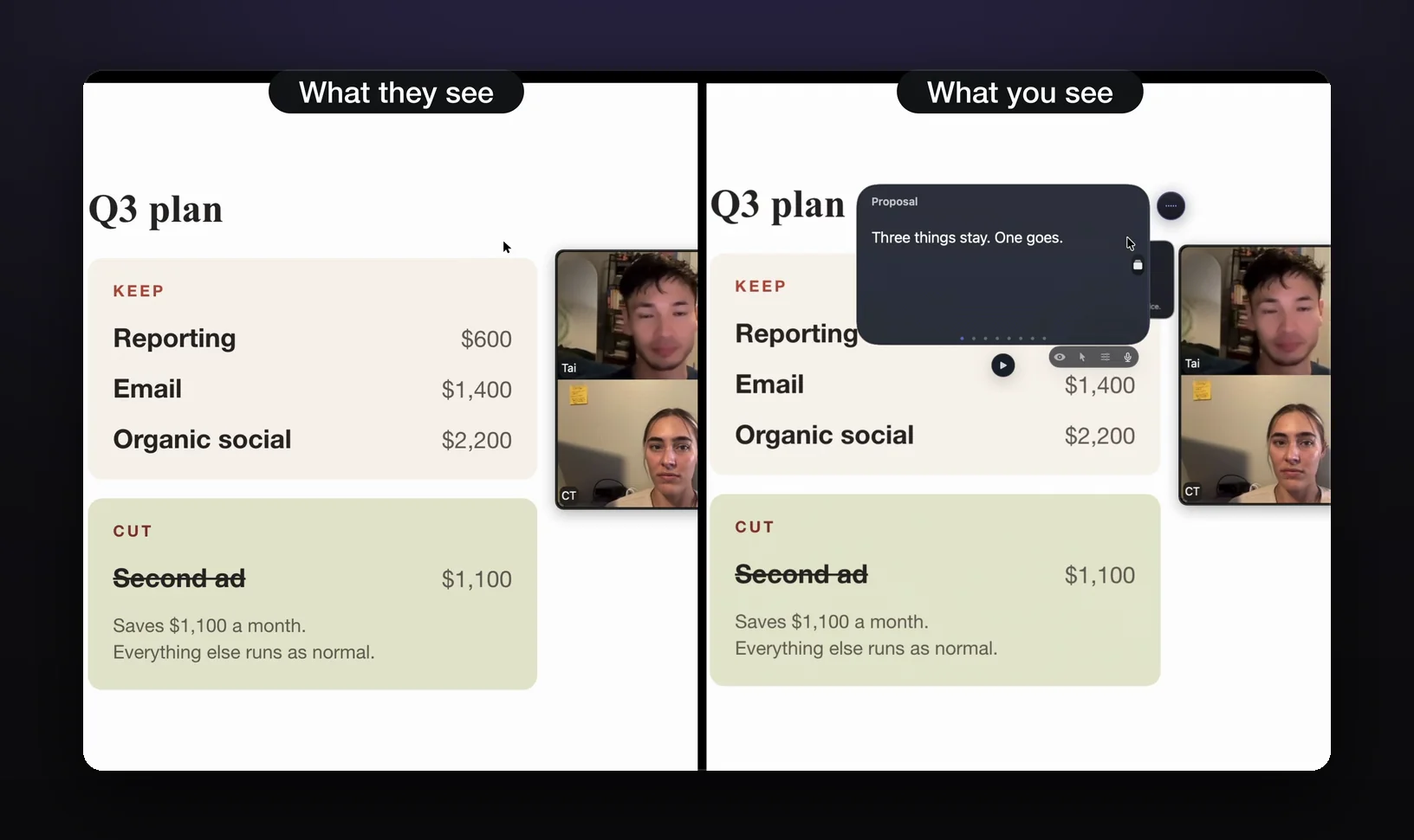
- Put your notes in GlideRail. Download it from gliderail.app and paste your talking points into a note. This part is free and needs no account.
- Turn on invisibility. Click the eye in the note window. It's a Pro feature, covered by the 7-day free Pro trial.
- Put the window right under your camera. Make it narrow. The closer the words sit to the lens, the less your eyes move while you read.
- Set Zoom's screen capture mode. In the Zoom app, click your profile picture, then Settings, Share Screen, Advanced. Set "Screen capture mode" to "Advanced capture with window filtering". On some Macs, Zoom's default "Auto" mode can include GlideRail's windows; with window filtering, they stay out.
- Share your entire screen, then start the slide show. In Zoom, click Share Screen, pick your screen and click Share. Then go back to PowerPoint and click Play from Start.
- Leave the deck whenever the call does. Switch to the browser or the product. People see each app you open, never your notes. Press ⌘' any time to hide or show every GlideRail window.
Click-through (Pro) lets your clicks pass through the note to the app underneath, so the note can stay put while you drive the demo. Cue Mode (Pro) turns the note into cards, one per topic: type # and a heading to start each one ("Pricing", "Timeline"). While Cue Mode is open, ⌘[ and ⌘] change cards from any app, so you never leave PowerPoint to find the right one.
On an Apple Silicon Mac, Live Rail (Pro) listens to the call on your Mac, and when someone says words that match one of your headings, it offers that card in a small chip. One click, or ⌘↩, and you're there. It never flips a card by itself.
The limits, plainly. Invisibility, click-through, Cue Mode and Live Rail are Pro; on the free tier your windows show in shares. Live Rail needs Apple Silicon. A phone camera pointed at your screen still sees everything. And if the deck is the whole call and your notes fit under each slide, the windowed slide show is free and does the job.
GlideRail is free to download, and the 7-day Pro trial covers invisibility, Cue Mode and Live Rail. Install it the week of a real pitch, so the trial lands on a call that matters.
Which option should you use?
| Setup | Cost | What the call sees | Can you leave the deck? | Where your eyes go |
|---|---|---|---|---|
| Windowed slide show, window share | Free | The slide show window | Only with a new share | The editing window, off to the side |
| Presenter View, portion share | Free | What's inside the green border | Only what fits in the border | Presenter View's notes |
| Second monitor | A monitor | The slide show monitor | Only by sharing that screen | The other screen |
| Zoom slides as background | Free | Slides with your video on top | No | Zoom's page shows no notes |
| GlideRail, full-screen share | Free app; invisibility is Pro | Your whole screen, minus GlideRail | Yes | Right under the camera |
- Deck only, on a laptop: play the slide show in a window and share that window.
- Deck only, and you want notes that follow each slide: Presenter View with a portion share.
- You own a second monitor: use it, and put the notes as close to the camera as you can.
- Slides plus a demo or a spreadsheet, or questions that jump around: GlideRail with a full-screen share.
Can you see PowerPoint notes on Teams or Google Meet?
In Microsoft Teams, use PowerPoint Live. From PowerPoint for Mac, click Present in Teams, and Microsoft says your slides appear in the meeting with your notes next to them, while attendees see only the slides. Attendees can move through the deck on their own, and Microsoft says you can turn that off before you share. It takes .pptx or .ppsx files. The Teams guide has the rest.
In Google Meet, play the slide show in a window as above, click Present now, choose A window and pick the slide show window. The Google Meet guide covers the details. GlideRail works the same way in both, with no capture setting to change.
FAQ
Can people on Zoom see my PowerPoint speaker notes?
Only if your notes are inside what you share. Share the slide show window, or a portion of the screen around the slide, and people see slides. Share your entire screen with Presenter View or the Notes pane open and they see your notes. GlideRail notes with invisibility on (Pro) stay out of a full-screen share once Zoom's screen capture mode is set to "Advanced capture with window filtering".
Will my speaker notes show up in the Zoom recording?
Only if they were in the share. Zoom records the shared screen or window, so a clean share makes a clean recording. If your notes were visible in a full-screen share, even for a few seconds, they're in the file.
Can I use PowerPoint Presenter View with one screen on a Mac?
Yes. Choose Slide Show, then Presenter View, and you get the current slide, the next one and your notes on one screen. For Zoom, share a portion of the screen around the current slide, or play the show in a window and share that window instead.
Does Zoom's PowerPoint as virtual background show my notes?
Zoom's help page for sharing slides as your background doesn't mention speaker notes. For notes on one screen, use a windowed slide show or a portion share instead.
Written by Takumi, maker of GlideRail. Last updated November 1, 2026.