How to Keep Notes Visible While Presenting Slides on Mac
Published 2026-10-20 · 9 min read
Two windowed-slideshow tricks solve this on a single Mac. Keynote's Play > In Window puts slides in one window and your presenter notes in another: you share only the slide window. PowerPoint can run Presenter View on one screen while Zoom shares the slide-show window. Both work. Both chain your notes to the deck, and that's the part nobody warns you about.
A disclosure before the methods: I created GlideRail, a conversation rail for Mac whose windows are invisible to screen capture; it's the last method here. Everything before it is Keynote, PowerPoint, and Teams doing the job for free.
- Keynote presenter notes on a Zoom call
- PowerPoint Presenter View on one screen
- PowerPoint Live in Teams
- Every method in one table
- Where presenter view runs out
- Which method to use
- FAQ
The single-laptop problem
Presenter view was designed for a stage: slides on the projector, notes on the laptop. Keynote's presenter display and PowerPoint's Presenter View both assume a second display exists.
The stage moved and the tooling didn't. According to Microsoft's Work Trend Index, the number of weekly meetings for the average Teams user grew 153% between February 2020 and early 2022. Those presentations now happen from a single laptop, not a podium.
On a Zoom call from one laptop, there is no second display. The audience view and your notes are fighting for the same 14 inches. And if you share your whole screen with the wrong notes pane open, everyone reads your notes with you. Here's every way out, cheapest first.
How do you see Keynote presenter notes on a Zoom call?
Keynote can show private presenter notes on a single Mac: choose Play > In Window instead of In Fullscreen, and you get two windows: the slideshow and the presenter display with slide navigator, notes, and timer. Share only the slideshow window in Zoom and attendees see slides while you read notes. If the presenter display doesn't appear, choose Play > Show Presenter Display in Window.
Then in Zoom, share the slideshow window, not your desktop. Attendees see slides. You see notes. You can even edit notes mid-presentation.
One more detail works in your favor. Apple's guide says presenter notes only become visible to a video call's audience if you turn on Show presenter display in other applications (Keynote > Settings > Slideshow). Leave that box unchecked and, by Apple's account, the presenter display stays out of the call. Do one test share before a call that counts anyway.
This is genuinely good, and if your notes are short and per-slide, use it and pay for nothing. Its limits show up later in this post.
PowerPoint on Mac: Presenter View on one screen
PowerPoint can show Presenter View without a second monitor. On a Mac, choose Slide Show > Presenter View; on Windows, start the slide show and select Show Presenter View from the control bar at the bottom left. Microsoft's guide has both.
For Zoom on one screen, the trick is a hidden window. Start the slide show, switch to Presenter View, then share the slide-show window now sitting behind it (an application window, not your desktop). Attendees see full-size slides while you see notes. Microsoft MVP Dave Paradi explains the method and which platforms allow it, with Mac walkthroughs for Zoom and Google Meet (Webex can't do it, because it shares every window of an app). It works, but rehearse the share order once: doing it live for the first time is how notes end up on screen.
Teams: PowerPoint Live builds the notes in
If your meetings are in Microsoft Teams, skip screen sharing entirely. PowerPoint Live presents the deck through Teams itself: attendees get slides, you get slides plus notes, chat, and the audience in one view. It's the cleanest native option, and it only exists inside Teams, with the deck in OneDrive or SharePoint (pick a file from your Mac and Teams uploads it for you). More on that setup: hidden notes in Microsoft Teams on a Mac.
The low-tech options still work
Two non-software answers still hold up: a second display, which gives Keynote and PowerPoint the geometry they were designed for, and a printed outline, which no screen share can capture. Both cost you the camera: your eyes visibly leave the lens every time you read.
Second display. Plug in a monitor and both Keynote and PowerPoint snap into their intended shape: slides on one screen, notes on the other. In Keynote you can press X mid-show to swap which display shows what. Share only the slides display in Zoom.
Printed outline. Free, reliable, no software. Your eyes leave the camera every time you check it, and page two is a gamble.
Every method, honestly
On a single Mac, Keynote's In Window mode is the best free option for a pure slide deck, and Apple says its presenter display stays out of video calls unless you turn that on. PowerPoint's one-screen Presenter View needs a careful window share. A second display or a printed outline survives any share, and capture-invisible floating notes (GlideRail's, in Pro) carry notes that aren't tied to one slide.
| Method | Where your notes live | Audience sees | Survives sharing your whole screen | Notes beyond this deck |
|---|---|---|---|---|
| Keynote In Window | Presenter display window | Slide window only | Apple says yes (setting off) | No (per-slide) |
| PowerPoint one-screen Presenter View | Presenter View | Slide-show window | No | No (per-slide) |
| Teams PowerPoint Live | Beside slides in Teams | Slides | Teams handles it | No |
| Second display | The other screen | One shared display | Yes | Yes |
| Printed outline | Your desk | Nothing | Yes | Yes |
| GlideRail (Pro) | Floating over anything | Everything but your notes | Yes (Zoom: one setting, below) | Yes (any note) |
The Keynote, PowerPoint, and Teams details come from Apple's and Microsoft's help pages as of October 2026.
Where presenter view runs out
Every native presenter-notes option (Keynote In Window, PowerPoint's one-screen Presenter View, PowerPoint Live in Teams) hits the same walls: the notes are welded to individual slides, there's one notes pane per deck, and PowerPoint's Presenter View goes public the moment you share your whole screen.
The full-screen share is the big one for PowerPoint. The moment your talk includes anything beyond slides (a live product demo, a browser, a spreadsheet) you're sharing the whole screen, and Presenter View goes with it. Keynote's presenter display stays out of the share by Apple's account, but it's still a slides-only window sitting on the screen you're demoing from. This is the demo-day trap: running a live demo without alt-tabbing is exactly when you need notes most and can least afford them on screen.
The welding is the quiet one. Presenter notes belong to a slide, so the pricing question arrives during slide 4 while your pricing notes sit under slide 18. Real presentations are non-linear, and a per-slide notes pane assumes they aren't. And it's one pane per deck, showing one slide's notes at a time: you can't keep the three numbers you must not fumble parked by the camera while your outline sits somewhere else.
Also: recordings inherit whatever you shared. Share a window and the recording is clean. Share the screen with PowerPoint's Presenter View open and your notes are in the file forever.
Floating notes the share never shows
The floating-notes method is the paid one, and it's mine. GlideRail, a conversation rail for your Mac, takes the opposite approach: your notes float over the deck in their own windows, outside the capture itself. Share your entire screen (slides, demo, browser, all of it) and the live share and the recording contain everything except your notes. On Zoom, set the screen capture mode to Advanced capture with window filtering first (Settings, Share Screen, Advanced).
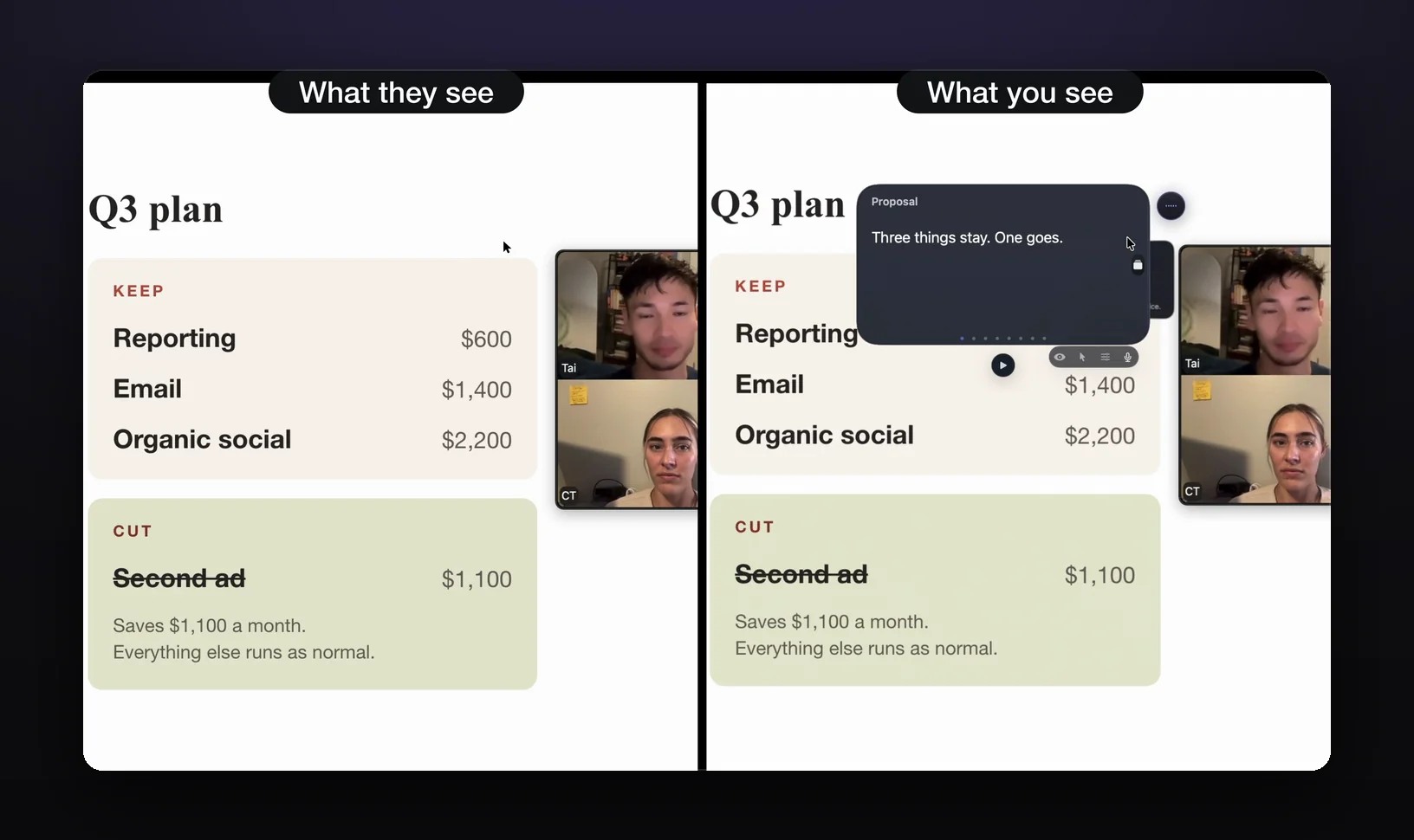
The first thing that changes is the share itself. No windowed-slideshow choreography, no share-order rehearsal: slides full screen, notes floating on top, audience sees only slides. Click-through (Pro) lets clicks pass through the notes window, so you advance slides and drive the demo without moving your notes out of the way.
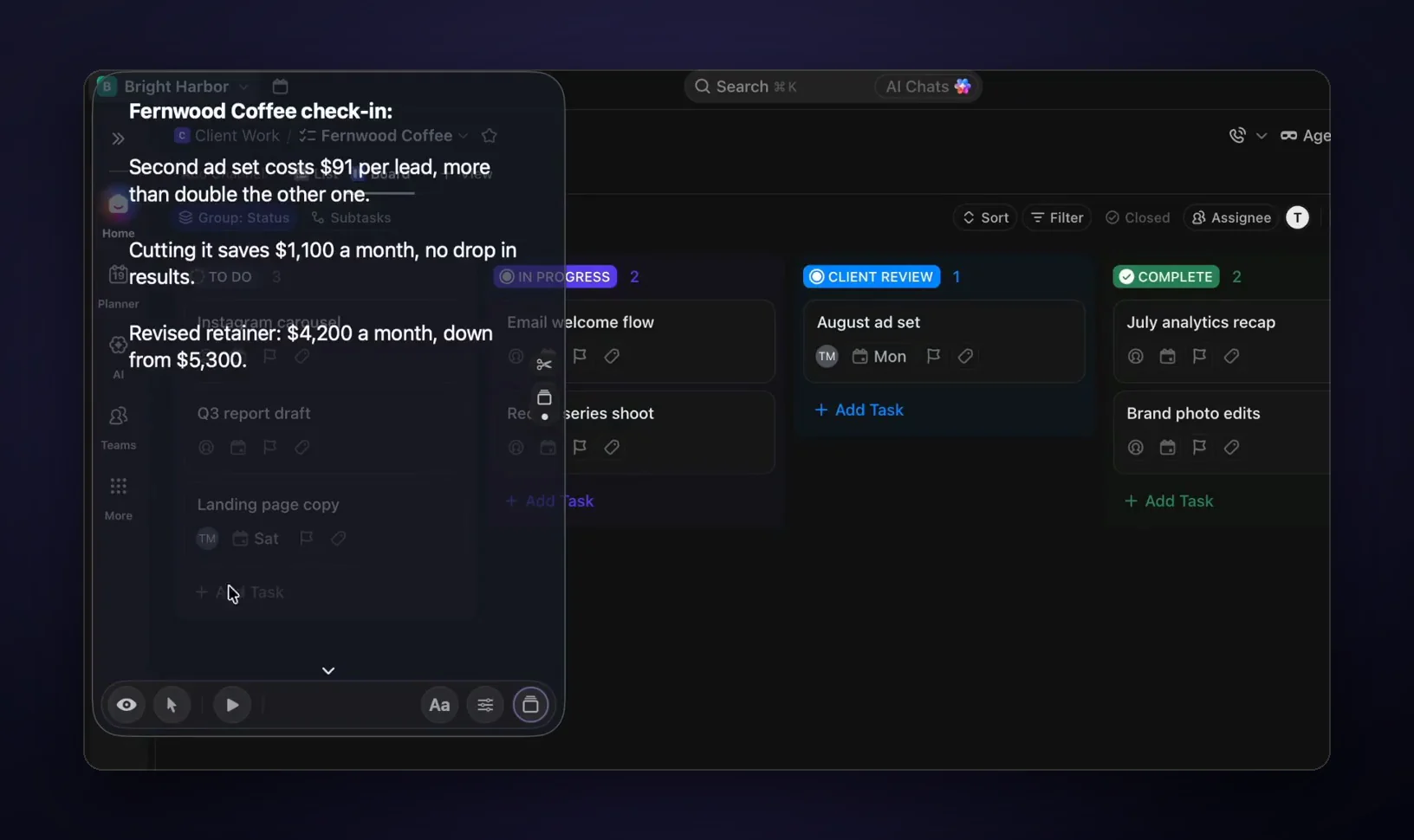
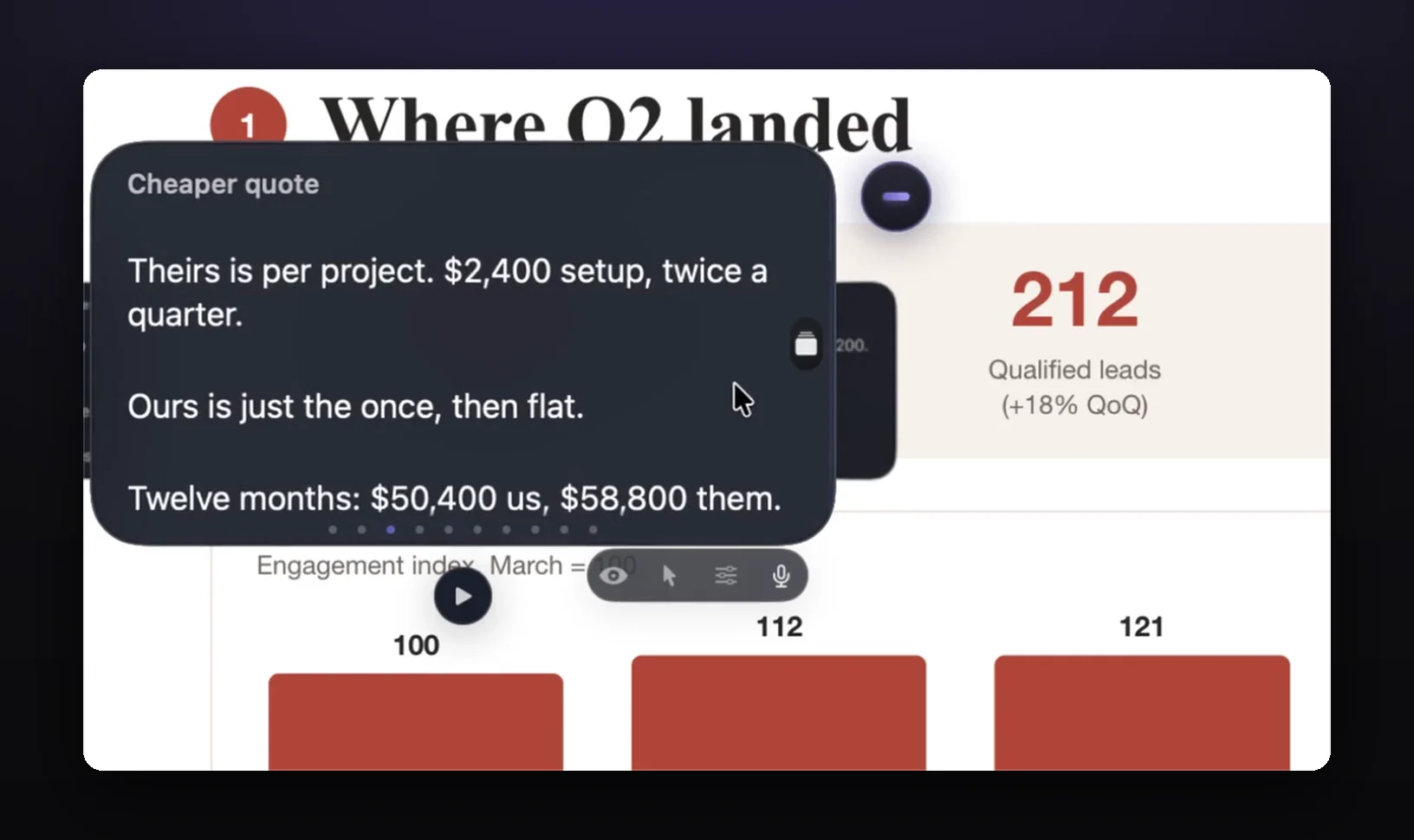
The second is that notes stop being per-slide. Keep a running outline, an objections list, and the numbers in one place, or in Cue Mode (Pro) make one card per section with ⌘1–⌘9 to jump straight to the topic that just came up. On Apple Silicon Macs, Live Rail listens for words from your section headings and suggests the matching card; one click jumps, and nothing moves on its own. And the windows go anywhere: any size, any screen, next to the camera so reading looks like eye contact.
The honest print: invisibility is a Pro feature ($99 a year, which is $8.25 a month billed yearly; $19.99 a month; or $249 once). Free windows are visible in shares. A physical camera pointed at your screen still sees everything. And if your notes really are three bullets per slide, Keynote's In Window mode is free and enough.
Which method should you use?
Pick by what your talk contains, not by price. For slides alone, the free options win: Keynote's In Window mode, or PowerPoint's Presenter View with a window share. Paid floating notes earn their place only when the talk leaves the deck or the questions arrive out of order.
- A Keynote deck and nothing else? Use Play > In Window. It's free, and Apple keeps the presenter display out of the call.
- A PowerPoint deck gets one-screen Presenter View plus a slide-show window share, or PowerPoint Live if the meeting is in Teams.
- Own a second monitor? Use it: notes on one screen, slides on the other.
- Slides plus a live demo, or notes that aren't about one slide, need floating notes hidden from capture, like GlideRail's (Pro). More on that setup in notes for client presentations.
- On camera once a month? A printed outline. Don't pay anyone.
FAQ
Can Zoom attendees see my Keynote presenter notes?
Not by default. Apple says presenter notes only reach a video call's audience if you turn on Show presenter display in other applications (Keynote > Settings > Slideshow). Use Play > In Window, share just the slide window in Zoom, and leave that box unchecked. Attendees see slides only.
Does PowerPoint Presenter View work with one monitor on a Mac?
Yes. Choose Slide Show > Presenter View. For a Zoom call, start the slide show, switch to Presenter View, and share the slide-show window (not your desktop), so attendees see slides while you see notes. Rehearse the share order once before a call that counts.
Will my notes show up in the meeting recording?
The recording captures whatever was shared. Share only the slide window and the recording is clean; share your full screen with PowerPoint's Presenter View open and your notes are in the file. GlideRail windows are absent from both the live share and the recording (Pro feature; on Zoom, with "Advanced capture with window filtering" on).
Can I edit my notes mid-presentation in Keynote?
Yes, in windowed mode. Apple's guide notes you can edit presenter notes and navigate the presentation from the presenter display window while the slideshow plays. Useful when a question in the Q&A needs to become a follow-up item on the spot.
What if my talk mixes slides with a live demo?
Then a window share stops working: you have to share the whole screen. PowerPoint's Presenter View becomes visible; Keynote's presenter display stays out of the call by Apple's account, but its notes only cover slides. Your options: a second display, a printed outline, or capture-invisible floating notes that survive a full-screen share.
Try it on your next deck
Use Keynote's In Window mode this week; it's free and it genuinely works. When you hit its walls, download GlideRail for Mac. The free version is free forever, and Pro features like invisibility come with a 7-day free Pro trial; if you buy, there's a 30-day money-back guarantee. So install now, and start the trial the week of a real presentation, so the seven days count.
Written by Takumi Mitchell, maker of GlideRail. Last updated October 20, 2026.