Keynote Taking Over Every Display? Keep a Screen Free on a Mac
Published 2026-11-19 · 6 min read · Competitor facts last checked 2026-11-19
Keynote takes over every display when you play a show in fullscreen, and I couldn't find a setting in Apple's guides that limits it to some displays. To keep a screen free for Zoom or your chat, choose Play, then In Window. The slideshow and presenter display open as normal windows, so you can drag them where you want and use your other apps. If your deck has to run in fullscreen, skip to that part.
Disclosure: I created GlideRail, a conversation rail for Mac. It comes up near the end, for calls that leave the deck; Keynote's free window mode is the real fix. The Keynote facts here come from Apple's Keynote guide and Apple Community threads.
- The options at a glance
- Why does Keynote take over every display?
- How do you keep a screen free with Play In Window?
- What if you must play in fullscreen?
- How do you see attendees and chat on a third monitor?
- What if the call leaves the deck?
- Which one should you pick?
The options at a glance
| Option | Cost | Other apps usable? | What the call sees | Good for |
|---|---|---|---|---|
| Play In Window, share the slideshow window | Free | Yes | The slideshow window | Zoom calls with chat or other apps in view |
| In Fullscreen, share the slides display | Free | One user report: Zoom's controls stayed usable | The slides display | Two displays, and you don't need chat |
| Second device for chat | A phone or iPad you own | Yes, on that device | Your Keynote share | Fullscreen shows with a live Q&A |
| Export to PDF or PowerPoint | Free | Yes | The exported file | Decks with no animation |
| GlideRail (my product), full-screen share | Free app; hiding it from shares needs Pro | Yes | Your screen, minus GlideRail | Calls that leave the deck |
Why does Keynote take over every display?
Keynote takes over every display because In Fullscreen is built for a stage. Apple's guide says the slideshow appears on an external display, and the presenter display appears on your Mac and any other connected displays. Nothing is left for Zoom. Pressing X swaps the slideshow and the presenter display between screens; it doesn't free one.
People have been asking about this for years. In a 2023 Apple Community thread, a host on three monitors asked to limit Keynote to two, so the third could show attendees and chat. The reply: "In a word, no." In a 2020 thread, another user said Keynote filled all three of their screens.
You can pick what each display shows, but each one still shows Keynote.
How do you keep a screen free with Play In Window?
Play In Window keeps a screen free because the show runs in ordinary windows. Apple says window mode lets you reach your presenter notes, desktop or other apps without interrupting the show, and that you can share the slideshow window on a video call. It's the supported way to run Keynote alongside anything else.
- In Keynote, click the slide you want to start on.
- Choose Play, then In Window, and click Play in the toolbar.
- If the presenter display doesn't open, choose Play, then Show Presenter Display in Window.
- Drag the presenter display to the screen you read from.
- In Zoom, click Share Screen, pick the slideshow window and click Share.
- Press Space or the Right Arrow to advance.
In the 2020 thread, one user reported that playing in a window gave them the slides and no notes. Step 3 is Apple's menu item for showing the presenter display in window mode.
Two cautions. Keep Show presenter display in other applications off (Keynote, Settings, Slideshow). Apple says it makes the presenter display visible to your audience through a video call app, and your notes would go with it. And pressing X to swap screens is reported not to work in window mode (Apple Community, 2025), so drag the windows yourself. Before a call that counts, join the meeting from your phone, share the window, and check that your notes and chat stay off the share.
What if you must play in fullscreen?
If you must play in fullscreen, pick what each display shows, and accept that it stays Keynote. While presenting, move the pointer over the presenter display and click Display Configuration. Apple says it lists up to six displays, and for each one you can choose Configure, then show the slideshow or a set of presenter items. For a video call, one report from a 2020 Apple Community thread says Zoom's controls stayed visible and usable over the presenter display on a two-display setup, while Zoom shared the other display. That's a user's report, not Apple's guidance, so try it before you rely on it.
How do you see attendees and chat on a third monitor?
To see attendees and chat on a third monitor, use Play In Window, because in fullscreen Keynote holds that screen too. Put the slideshow window on one display, the presenter display on your main one, and Zoom's gallery and chat on the third. A window share sends the window you picked rather than your whole screen, so the other two stay with you; the phone check above confirms it.
If you need fullscreen for video or transitions, the workaround from the 2023 thread is a second device. The person who answered keeps a second computer running everything else. A phone or iPad joined to the same meeting does the same job for chat and questions. Mute it, so you don't get an echo.
Exporting is the other way out. Users in a 2020 thread reported that PDF ran better but lost animations, transitions and video, and that HTML export ran slowly and dropped audio.
What if the call leaves the deck?
If the call leaves the deck, a one-window share stops working, because the audience sees nothing new until you start another share. That's a normal day on a sales demo. Share your whole screen instead, and your presenter window is in the share. So for those calls, your notes need to live somewhere the share leaves out: paper, a phone or iPad beside the screen, or an app the share doesn't capture.
With Invisible on (Pro), GlideRail's windows are left out of screen capture, so you can share your entire screen, play Keynote In Window, and switch to your product whenever the call does. People see each app you open, and they don't see your cards. On Zoom, set Screen capture mode to "Advanced capture with window filtering" first, as this Zoom guide shows, and check it from your phone before a real call.
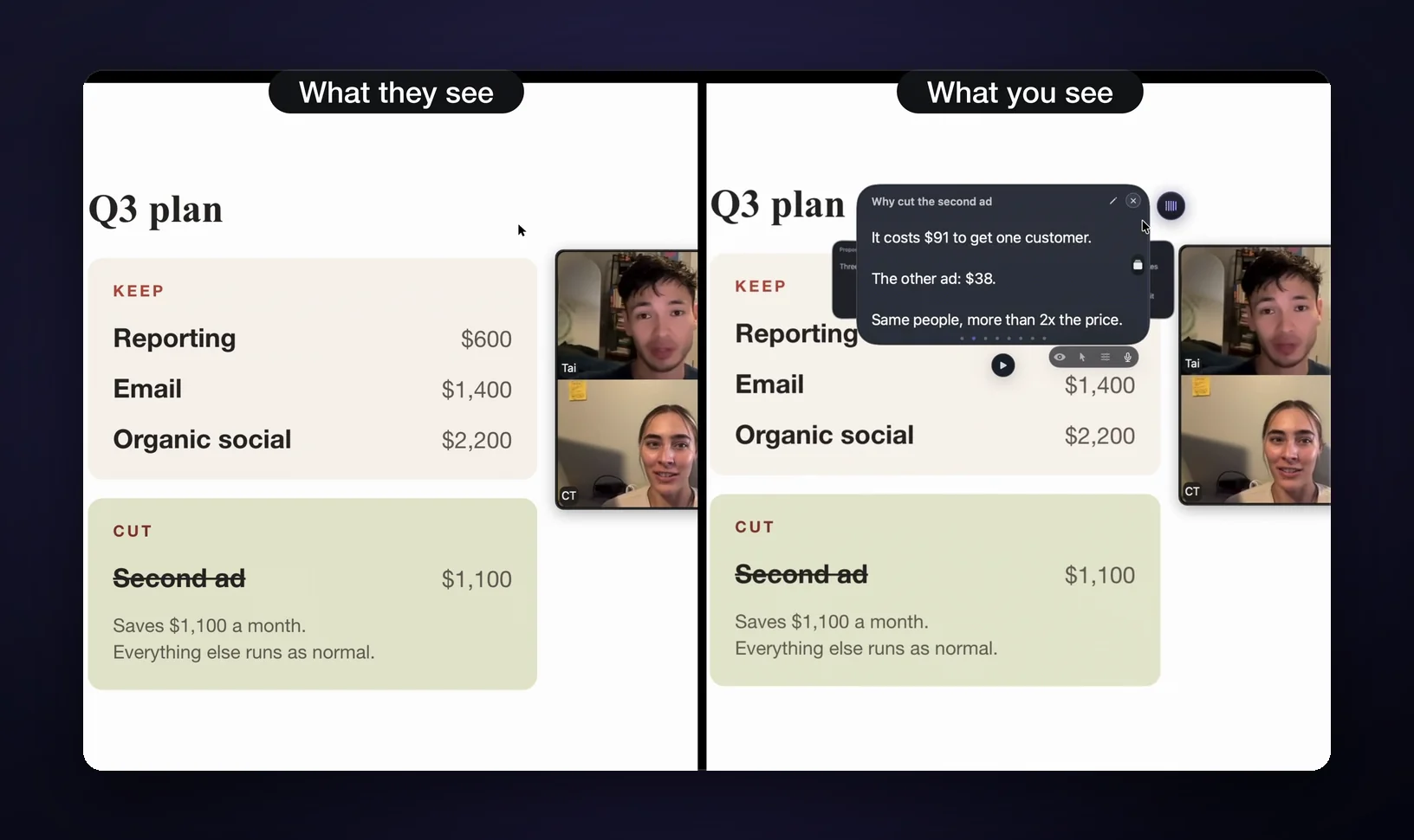
Limits: this is for window mode, so it doesn't change what Keynote does in fullscreen. Your cards aren't tied to slides, so they won't advance with the deck. ⌘[ and ⌘] change them from any app while Cue Mode (Pro) is open. On the free version your windows show in shares, and a phone pointed at your screen sees everything.
The Keynote presenter notes guide has the full setup, and the slides post covers PowerPoint and Google Slides too.
Which one should you pick?
- You present on Zoom and want chat or attendees in view: Play In Window.
- You're on a stage with a projector and no call: In Fullscreen is what it's for.
- You need fullscreen effects and live chat: a second device for the chat.
- You leave the deck for a demo or a spreadsheet: GlideRail with a full-screen share.
FAQ
Can I restrict Keynote to two of three displays?
Not in fullscreen, going by Apple's guide and the replies in Apple Community. Keynote uses every connected display, though you can choose what each one shows. Use Play In Window, which runs in normal windows and leaves your other displays alone.
Why can't I see other apps while Keynote is playing?
In fullscreen, the show covers your displays, so other apps stay behind it. Press Esc to stop, then choose Play, then In Window. Apple says window mode lets you reach your desktop and other apps without interrupting the show.
Why did my presenter notes vanish in Play In Window?
The presenter display may be closed. Choose Play, then Show Presenter Display in Window, or move the pointer to the top of the slideshow window and click Show Presenter Display. If it's open but the notes aren't there, click Display Configuration and select Presenter Notes.
Can I present Keynote on Zoom with one Mac screen?
Yes. Choose Play, then In Window, and share only the slideshow window in Zoom. The presenter display stays with you, off the share, with your notes, the next slide and a timer. The Keynote guide has the steps.
Written by Takumi, maker of GlideRail. Last updated November 19, 2026.