How to See Keynote Presenter Notes While Presenting (Mac)
Updated 2026-11-01 · 7 min read
Short answer: On one Mac, choose Play, then In Window. Keynote opens two windows: the slideshow and the presenter display, with your notes. On Zoom, share only the slideshow window. With a second display, choose Play, then In Fullscreen: the slides go on one screen and the presenter display, notes included, on the other. If the notes are hidden, click the Display Configuration button on the presenter display and tick Presenter Notes.
Keynote shows your presenter notes on the presenter display, and on one Mac you get it by playing the show in a window. Choose Play, then In Window. Keynote opens two windows: the slideshow, and the presenter display with your notes, the next slide and a timer (Apple's Keynote guide). On a Zoom call, share only the slideshow window. In a room with a second display, play in fullscreen instead and the notes go on your screen while the slides go on the other one.
A disclosure: I created GlideRail, a conversation rail for your Mac. It keeps what you prepared right by your camera and out of your screen share. It's the paid option near the end, for calls that leave the deck. Everything before it is Keynote doing the job for free.
How do you add presenter notes in Keynote?
Click the View menu button in the toolbar and choose Show Presenter Notes. Pick a slide in the slide navigator and type in the notes area under it (Apple's presenter notes page). Notes never appear on the slide itself. Each slide has its own notes, and those are the notes the presenter display shows when that slide is up.
How do you see presenter notes on one Mac screen?
Play the show in a window. It's the setup Apple suggests for a Mac without a second display:
- Select the slide you want to start on.
- Choose Play, then In Window. The slideshow and the presenter display open as two windows.
- If the presenter display doesn't appear, choose Play, then Show Presenter Display in Window.
- Press the Space bar or the Right Arrow to start. The timer starts with it.
If your notes aren't on the presenter display, click the Presenter Display Options button and tick the items you want to see. To make the notes bigger, move the pointer over the Presenter Notes field and click a font button in its top-left corner.
Fullscreen on one screen is the trap. Play, then In Fullscreen fills your only display with the slide and hides the presenter display, so your notes are gone until you press Esc.
How do you see Keynote notes on a Zoom call?
Play in a window, then share only the slideshow window:
- In Keynote, choose Play, then In Window.
- In Zoom, click Share Screen, pick the Keynote slideshow window and click Share (Zoom's share screen page).
- Present from the presenter display. The call sees slides, and you see your notes, the next slide and the clock.
Check one setting before a call that counts: Keynote, then Settings, Slideshow, Show presenter display in other applications. Apple says that box is what lets you share the presenter display with a video call app, and sharing it makes your notes visible to the audience. Leave it off. Then run one test share and click through a few slides.
Where it breaks: Zoom is sharing one window. Open a browser or the product and the call doesn't see it until you start a new share. And the presenter display sits wherever its window sits, usually off to the side and away from the lens.
How do you see presenter notes with a second display?
A second display is what the presenter display was built for. Connect it, choose Play, then In Fullscreen, and Keynote puts the slides on one screen and the presenter display on the other (Apple's separate display page). If they land on the wrong screens, press X until they swap.
To pick what the presenter display shows, move the pointer over it and click the Display Configuration button in the top-right corner, then tick or untick each item: the current slide, the next slide, the clock, the timer and your presenter notes. Customize Presenter Display lets you drag them into your own layout.
On a Zoom call with two displays, share the display with the slides, not the one with your notes.
How do you practice with presenter notes?
Choose Play, then Rehearse Slideshow (Apple's rehearse page). The presenter display opens without a second display, so you can set up its layout and run through the talk. Press X to switch between the presenter display and the current slide, and Esc to stop. To change a note while you rehearse, double-click the Presenter Notes field, type, and click Done. The same works during a windowed show.
Why do Keynote notes stop working when you share your whole screen?
Every option above assumes the call stays in Keynote. Sales calls and demos rarely do. The buyer asks to see the product, or a client wants the spreadsheet behind slide 6. Now you share your whole screen, and the presenter display is just another window sitting on the screen you're demoing from.
The other limit is quieter. Keynote notes belong to slides. The pricing question comes up on slide 3 while your pricing notes are under slide 14, and your answers to the objections you expect don't belong to any slide at all.
Keep notes on screen when the call leaves Keynote
GlideRail's windows are invisible to screen capture (a Pro feature). Share your entire screen and Zoom shows your slides and any app you switch to, but not your GlideRail notes. Recordings leave them out too.
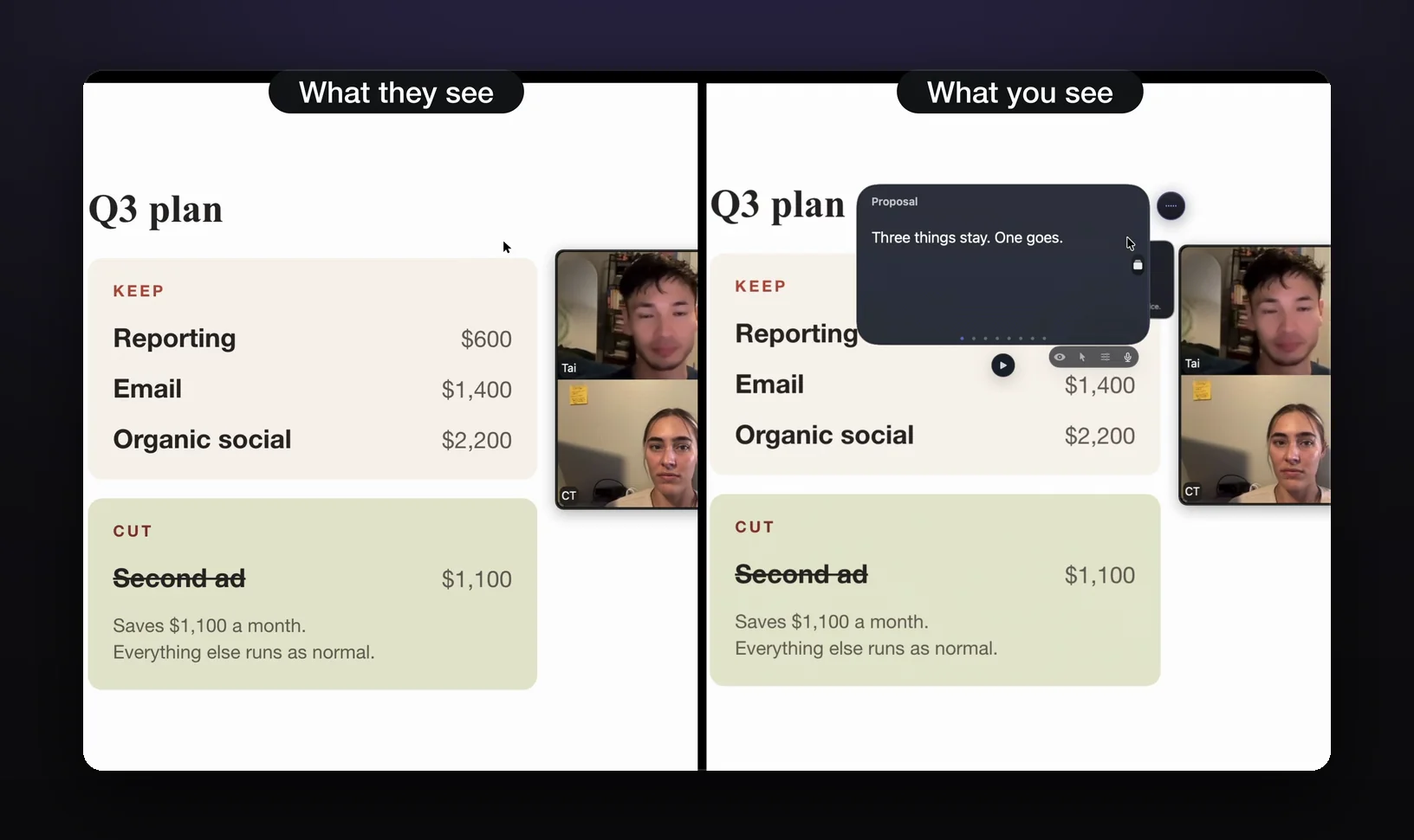
- Put your notes in GlideRail. Download it from gliderail.app and paste your talking points into a note. This part is free and needs no account.
- Turn on invisibility. Click the eye in the note window. It's a Pro feature, covered by the 7-day free Pro trial.
- Put the window right under your camera. Make it narrow. The closer the words sit to the lens, the less your eyes move while you read.
- Set Zoom's screen capture mode. In the Zoom app, click your profile picture, then Settings, Share Screen, Advanced. Set "Screen capture mode" to "Advanced capture with window filtering". On some Macs, Zoom's default "Auto" mode can include GlideRail's windows; with window filtering, they stay out.
- Share your entire screen, then play the deck. In Zoom, click Share Screen, pick your screen and click Share. Then go back to Keynote and choose Play, then In Window.
- Leave the deck whenever the call does. Switch to the browser or the product. People see each app you open, never your notes. Press ⌘' any time to hide or show every GlideRail window.
Cue Mode (Pro) turns the note into cards, one per topic: type # and a heading to start each one ("Pricing", "Timeline"). While Cue Mode is open, ⌘[ and ⌘] change cards from any app, so you never leave Keynote to find the right one. On an Apple Silicon Mac, Live Rail (Pro) listens to the call on your Mac, and when someone says words that match one of your headings, it offers that card in a small chip. One click, or ⌘↩, and you're there. It never flips a card by itself.
The limits, plainly. Invisibility, Cue Mode and Live Rail are Pro; on the free tier your windows show in shares. Live Rail needs Apple Silicon. A phone camera pointed at your screen still sees everything. And if the deck is the whole call and your notes fit under each slide, Keynote's windowed show is free and does the job.
GlideRail is free to download, and the 7-day Pro trial covers invisibility, Cue Mode and Live Rail. Install it the week of a real pitch, so the trial lands on a call that matters.
Which option should you use?
| Setup | Cost | What the audience sees | Can you leave the deck? | Where your eyes go |
|---|---|---|---|---|
| Play In Window, window share | Free | The slideshow window | Only with a new share | The presenter display window |
| Second display, In Fullscreen | A display | The slides display | Only by sharing that display | The other screen |
| Rehearse Slideshow | Free | Nobody, it's practice | Not a live option | The presenter display |
| GlideRail, full-screen share | Free app; invisibility is Pro | Your whole screen, minus GlideRail | Yes | Right under the camera |
- Deck only, on a laptop: Play In Window and share the slideshow window.
- In a room with a projector or a TV: In Fullscreen, notes on your screen, press X if they land on the wrong one.
- Slides plus a demo or a spreadsheet, or questions that jump around: GlideRail with a full-screen share.
FAQ
Can people on Zoom see my Keynote presenter notes?
Only if you share them. Share just the slideshow window and they see slides. Apple says the presenter display can be shared with a video call app only once you turn on Show presenter display in other applications (Keynote, Settings, Slideshow), so leave that off. Share your entire screen and anything on it is in the share.
Why can't I see my presenter notes in Keynote?
Usually because the show is in fullscreen on one display, which hides the presenter display. Choose Play, then In Window. If the presenter display is up but the notes aren't, click the Presenter Display Options button (Display Configuration with two displays) and tick Presenter Notes.
Can I edit presenter notes while presenting in Keynote?
Yes. Double-click the Presenter Notes field on the presenter display, type your change and click Done.
How do I make Keynote presenter notes bigger?
Move the pointer over the Presenter Notes field on the presenter display and click a font button in its top-left corner to make the text larger or smaller.
Written by Takumi, maker of GlideRail. Last updated November 1, 2026.