Zoom Won't Let You Share Your Screen on a Mac? What to Check
Published 2026-11-17 · 5 min read · Competitor facts last checked 2026-11-17
If Zoom won't let you share your screen on a Mac, the usual cause is a macOS permission. Open System Settings, then Privacy & Security, then Screen & System Audio Recording, and turn on Zoom. If that's already on, the block is a meeting or account setting, and the table below shows which one.
If Zoom is open when you change the permission, it asks to restart, so you'll drop out of a meeting you're in. Rejoin from the same link. Doing the check before the call avoids that.
One disclosure: I created GlideRail, a conversation rail for Mac. It comes up at the end, as a way to keep your notes out of a share once sharing works.
- What you see, and what to do
- How do you allow Zoom to share your screen on a Mac?
- Why is Share Screen greyed out or missing?
- What if you're using Zoom in a browser?
- Can't share your screen on Teams on a Mac?
- What to do if the call starts in five minutes
- Once it works, check what you're sharing
What you see, and what to do
| What you see | Likely cause | What to do |
|---|---|---|
| Zoom asks for permission, or sharing won't start | macOS permission is off | Turn on Zoom in Screen & System Audio Recording |
| Share Screen is greyed out | Locked by your account or group | Ask your Zoom admin |
| Share Screen is missing, or only the host can share | The host limited sharing | Ask the host to allow it |
| "You are restricted from screen sharing in this meeting" | Usually, sharing is off while guests are in the meeting | The host turns off "Disable screen sharing when guests are in the meeting" |
| You can share apps, not your desktop | Desktop sharing is switched off | Turn off "Disable desktop screen sharing for meetings you host" |
| You're in a browser | The browser needs the permission | Turn on your browser in the same list |
How do you allow Zoom to share your screen on a Mac?
To allow Zoom to share your screen, you give it the screen recording permission in macOS. Zoom's macOS permissions page and Apple's guide cover these steps between them:
- Open the Apple menu and choose System Settings.
- Click Privacy & Security in the sidebar. You may need to scroll down.
- Click Screen & System Audio Recording.
- Find Zoom in the list and turn it on. If it isn't listed, Apple's guide says to click the Add button below the list and choose the app.
- If Zoom is already running, it prompts you to restart it. Zoom says the new setting takes effect after the restart.
If you're on a work Mac and can't change the setting, your company controls it, and your IT team is the one to ask. If the switch is on and sharing still fails, turn it off and on again, then restart Zoom.
Why is Share Screen greyed out or missing?
Share Screen is greyed out when sharing is locked at the group or account level, so only your Zoom admin can change it. If the button is missing, or you see a message that you can't share, the host has limited who can share. Zoom's troubleshooting page lists each case.
If it's someone else's meeting, ask the host in the chat. The host can turn on sharing for participants during the meeting.
If it's your meeting and this keeps happening, change it in your account. In the Zoom web portal, open Settings, click Meeting in the side menu, then In Meeting (Basic), and under Screen sharing set "Who can share?" to All Participants.
What if you're using Zoom in a browser?
If you're using Zoom in a browser, macOS has to allow the browser. Zoom's web app page points to the same list: in Screen & System Audio Recording, turn on Chrome, Firefox, Safari or Edge, whichever you use. Then try sharing again.
Can't share your screen on Teams on a Mac?
Teams on a Mac needs the same permission. Microsoft's page on presenting says the first time you share, a prompt asks for it. If you missed it, turn on Microsoft Teams in the list from step 3, then go back to the meeting and select Share again.
What to do if the call starts in five minutes
If the call starts in five minutes and the fix isn't working, stop there. Send your slides or link in the chat and talk people through them, or ask someone else on the call to share. It's less polished, and it beats spending the first ten minutes in System Settings while a client waits.
Zoom's troubleshooting page also lists updating the app, restarting your Mac and reinstalling Zoom. Save those for after the call unless you have time.
If people see a black screen where your share should be, start with the permission above and a restart of Zoom. If you're showing PowerPoint in Presenter View and they see white, that's a different problem: see the white screen post.
Once it works, check what you're sharing
A full-screen share sends everything on that display, your notes and your messages included. Before a client call, close what you don't want seen and turn on Do Not Disturb. A one-window share is the simple way to limit it, and the screen sharing post compares the options.
If you need your whole screen and your notes at once, GlideRail's Invisible mode (Pro) leaves GlideRail's windows out of the share and the recording while you still see them. On Zoom, it needs Screen capture mode set to "Advanced capture with window filtering", as this Zoom guide shows. On the free version your windows show in a share, and a phone pointed at your screen sees everything.
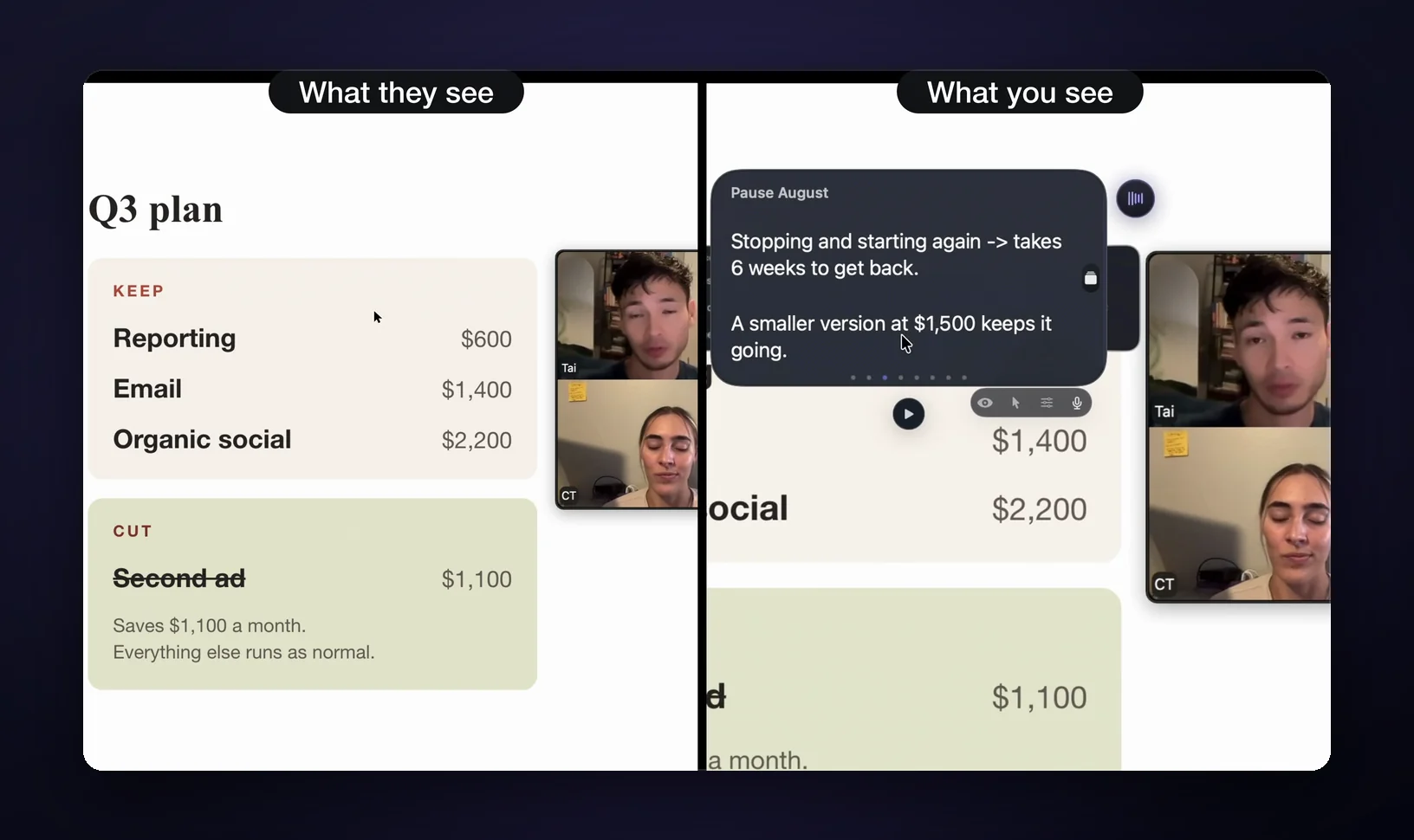
GlideRail is free to download. The 7-day free Pro trial covers Invisible, and if you buy later there's a 30-day money-back guarantee.
FAQ
Why does Zoom need screen recording permission just to share?
A live share has to read your screen, and macOS controls that with the same permission it uses for recording. Giving Zoom the permission doesn't start a recording, and you can turn it off in the same place.
Does this fix work for Slack or Discord too?
The same macOS list controls which apps can read your screen, so the first check is the same: find the app in Screen & System Audio Recording and turn it on. Each app's own settings can still block sharing.
Written by Takumi, maker of GlideRail. Last updated November 17, 2026.