How to Share Your Screen Without Showing Your Notes (Zoom, Meet, Teams)
Published 2026-10-01 · 7 min read
Share one window instead of your whole screen. Zoom, Google Meet, and Microsoft Teams all support it, and everything outside that window, notes included, stays invisible to the call. Zoom can even share just a rectangle of your screen. Window shares break the moment you need a second app; for full-screen shares you need notes that are invisible to capture.
A disclosure before the how-to: I make GlideRail, a Mac notes app whose windows are invisible to screen capture. It appears once, at the end, for the full-screen case. Everything before that is free and built into the platforms.
The rule: share the smallest thing that works
Every platform captures exactly what you point it at and nothing more. A browser tab is smaller than a window. A window is smaller than a desktop. Your notes are safe when they live outside the captured region. They're exposed the instant they sit inside it, or float above it.
So the whole game is scope. And the game runs daily now: according to Microsoft's Work Trend Index, the average Teams user's weekly meeting time grew 252% between February 2020 and early 2022. Here's how to set the scope on each platform, with the honest limits after.
Zoom: one window, several windows, or a portion of the screen
Zoom can share a single window, several windows at once, or just a rectangle of your screen: the most scope options of the three platforms. Anything outside what you pick, notes included, never reaches the call. Steps, per Zoom's screen sharing documentation:
- Click the green Share button in the meeting toolbar.
- Stay on the Screens tab.
- Click a single app window instead of a desktop thumbnail. On a Mac, hold Shift to select several windows at once.
- Click Share.
Participants now see that window and nothing else. Your notes app, your inbox, your Dock badges: all outside the frame.
Zoom also has a sharper tool: Share → Advanced tab → Portion of Screen. You get a green rectangle you can drag and resize; only what's inside it goes to the call. Park your notes an inch outside the border and they're private, even though they're on the same screen you're presenting from.
Two Mac details. The first time you share, macOS will make you grant Zoom screen-recording permission in System Settings (that's normal). And Zoom excludes its own windows from your share by default, so the participant list and chat don't leak either.
Google Meet: a tab, a window, or the whole screen
Google Meet shares a Chrome tab, a single app window, or your entire screen. Click Present now (or the share icon) and pick, per Google's steps here. Notes outside the shared tab or window stay private; Meet offers no portion-of-screen share and no multi-window select.
The Chrome tab share is the tightest scope Meet offers, and it carries the tab's audio by default, which makes it the right pick when you're showing a video. The window share works like Zoom's. Notes in another tab of the same window are safe on a tab share. But see the tab-title warning below before you share the whole browser window.
Microsoft Teams: screen or window
Microsoft Teams shares either a single window or your entire screen: no portion share, no multi-window select. In a Teams meeting, select Share in the meeting controls, then choose a specific Window; the other options are your whole screen, PowerPoint Live, and Whiteboard. Microsoft's steps are here.
On a Mac, Teams needs screen-recording permission first: System Settings → Privacy & Security → Screen & System Audio Recording, toggle on Microsoft Teams, then restart the share.
What each platform lets you share
Zoom is the most flexible platform for keeping notes off a share, with multi-window and portion-of-screen options; Google Meet's tab share is the tightest single scope; Microsoft Teams offers only a window or the full screen. On all three, anything un-shared stays private.
| Platform | One window | Several windows | Portion of screen | Browser tab |
|---|---|---|---|---|
| Zoom | Yes | Yes (Shift-click on Mac) | Yes (Advanced tab) | As a window |
| Google Meet | Yes | No | No | Yes, with tab audio |
| Microsoft Teams | Yes | No | No | As a window |
If window sharing covers your calls, stop here. It's free, built in, and it genuinely works. The rest of this article is for the calls where it doesn't.
Where window sharing falls apart
Window sharing fails four predictable ways: the second-app moment forces a risky mid-call reshare, dialogs and pop-ups render outside the shared window, a browser window share leaks every tab title, and anything floating on top of your screen goes public the moment you fall back to a desktop share.
The second-app moment is the big one. You shared the deck. They ask to see the dashboard. Now you're stopping the share, hunting the right thumbnail, resharing. Or, under pressure, you click "Desktop" to make the problem go away, with your notes sitting right there. A window share forces you to predict every app you'll need before the call starts. Demos don't work that way; that's why we wrote a separate piece on running a live demo without alt-tabbing.
Dialogs and pop-ups cause the opposite failure. Menus, save dialogs, and permission prompts often render as separate windows, outside your share, so you're clicking through a dialog you can see while the call stares at a frozen app, wondering what's happening.
Browser window shares leak in a quieter way. Sharing the whole Chrome window shows the tab strip, and the tab strip shows every title. "Interview prep - Google Docs" reads loud and clear. Share a single tab instead, or keep notes in a different window entirely.
And floating notes die on desktop shares. Any note that stays on top for you stays on top of the capture too: Stickies' Float on Top, a pinned to-do app, all of it. The moment you fall back to sharing the full screen, everything floating is public. We covered the eye-line side of this in how to see your notes during a Zoom call.
What if you have to share your entire screen?
Some calls simply need the full screen: multi-app demos, live products, "let me just show you." For those, the fix is the paid one. GlideRail, a Mac notes app whose windows are invisible to screen capture, takes the opposite approach: instead of shrinking the share around your notes, it removes the notes from the capture itself.
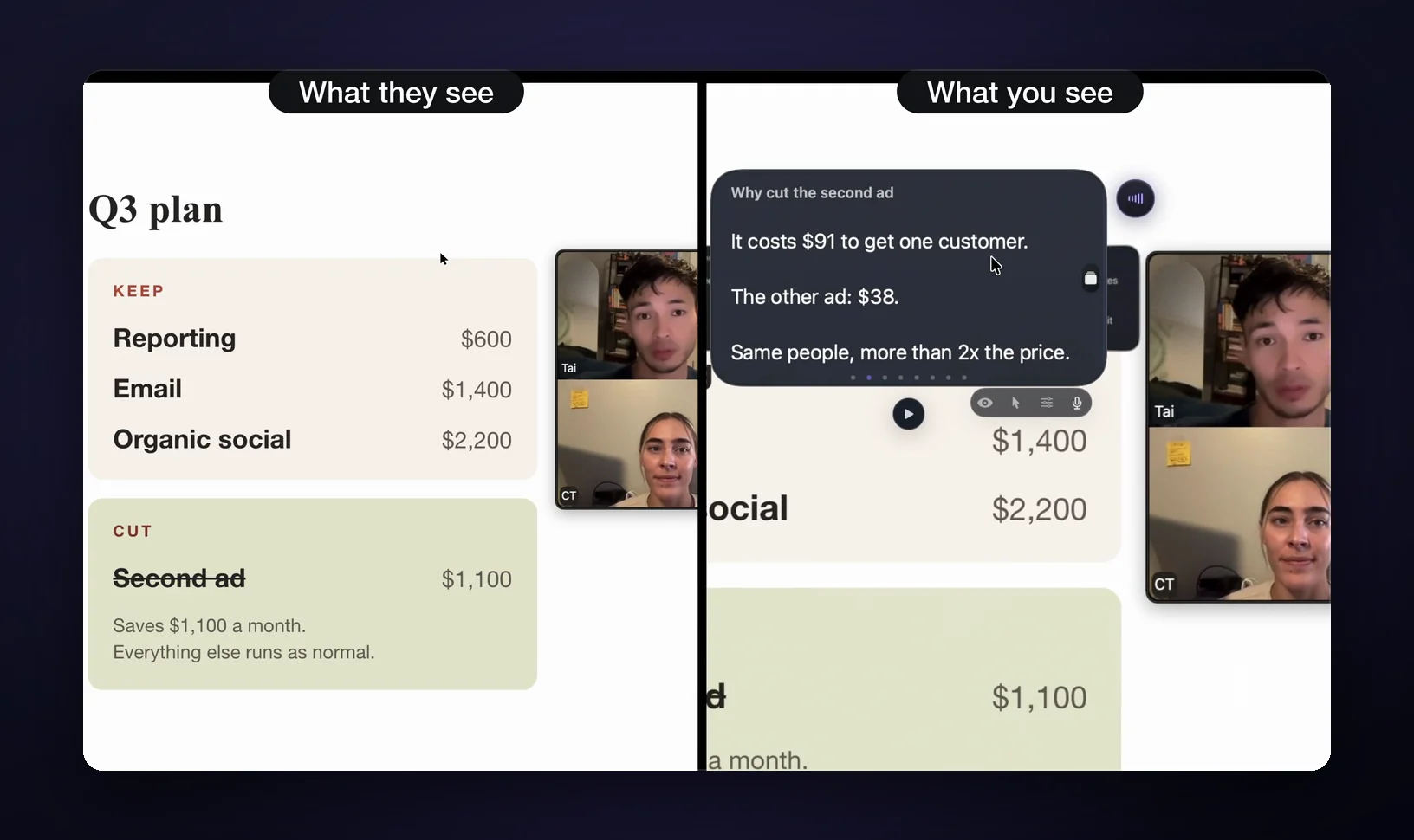
Share your entire desktop in Zoom, Meet, or Teams and participants see every app except your notes. Same for recordings in Loom, OBS, and QuickTime, because the exclusion happens at the macOS capture layer, not per app. The note floats wherever you put it, right over the screen you're sharing. With click-through on, it even ignores your mouse, so you drive the demo through it. Details on how that holds up across recording tools: notes invisible to screen recording.
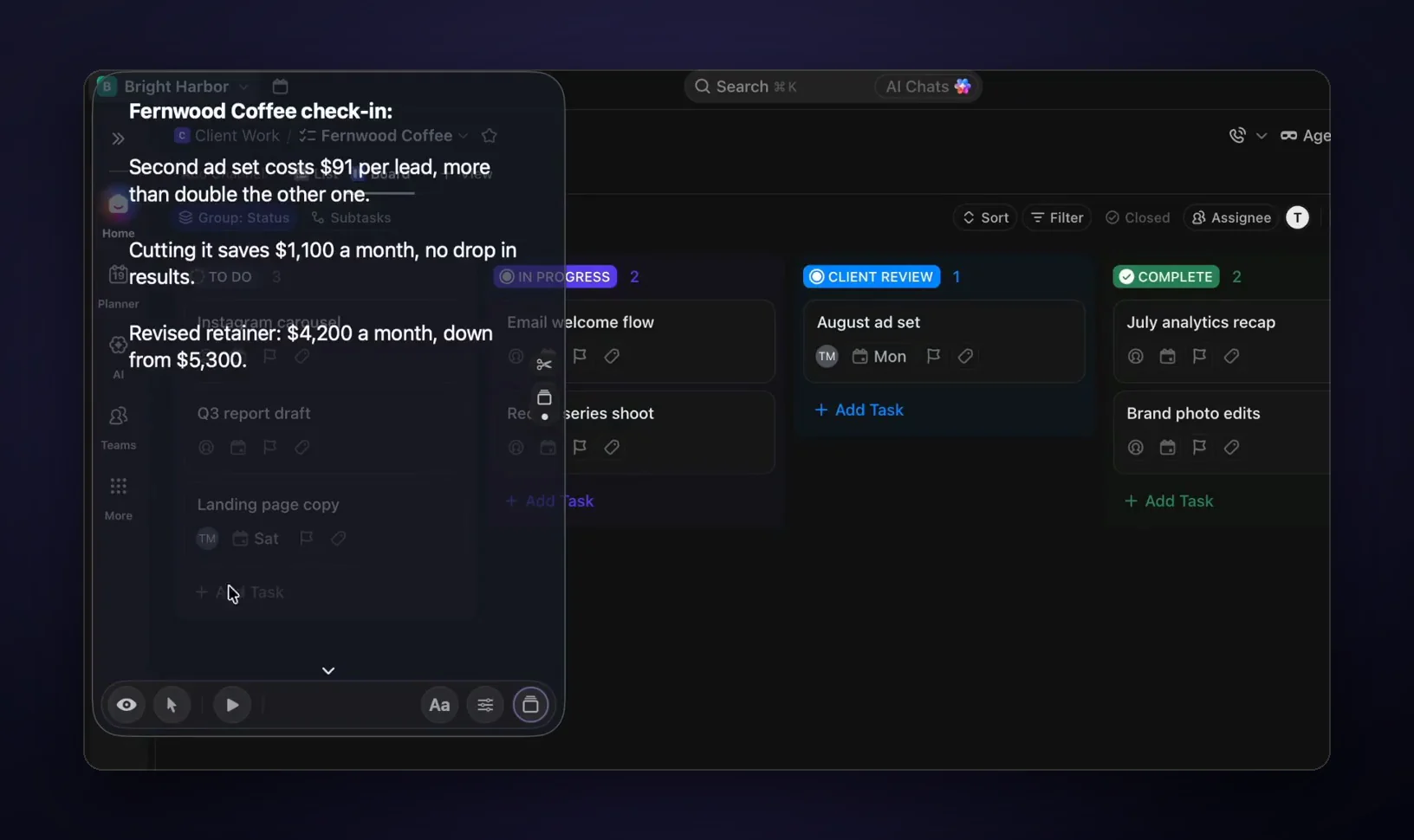
The honest print: invisibility is a Pro feature. The free tier is a real notes app, but its windows are as visible as any other. It fools screen capture, not eyeballs or optics: anyone physically at your desk, or a phone camera pointed at the display, sees your notes fine. And if your calls only ever need one window, you don't need this; the window share is free and solid.
FAQ
If I share one window, can people see my other windows?
No. A window share captures that window's contents only. Other windows aren't transmitted even when they overlap it on your physical screen; participants keep seeing the shared window. The full breakdown of what Zoom can and can't see is in can Zoom see your other windows.
Do notifications appear when I share a window?
Not on a window share: notification banners are separate windows, so they're outside the captured region. On a full-screen share, every banner shows, sender name and preview included. Turn on a macOS Focus mode before important calls either way; it's one Control Center click.
Can I switch what I'm sharing without stopping?
Yes. In Zoom, click New Share in the floating toolbar and pick the next window; the swap is one step. Meet and Teams handle it the same way in effect: start a new share and it replaces the current one. The clumsy part isn't switching; it's realizing mid-sentence that you need to.
Does this work for recordings too (Loom, QuickTime, OBS)?
The same scope logic applies: record a single window and notes outside it are safe; record the full screen and everything visible is in the file. The stakes are higher because recordings are permanent and rewatchable. GlideRail windows are excluded from those captures the same way they're excluded from live shares.
Why not just use PowerPoint or Keynote presenter notes?
Presenter view is genuinely good when the deck is the entire call: notes on your screen, slides on theirs. It breaks the moment you leave the deck: the notes are welded to slides, so a demo, a doc, or an off-script question strands you. It's a slides tool, not a notes tool.
If screen sharing is where your notes keep dying, download GlideRail free. You get the full notes app free, forever, and a 7-day free Pro trial to test invisibility. So install it now and start the trial before a call that counts. Worst case, you've added a decent notes app.
Written by Takumi Mitchell, maker of GlideRail. Last updated October 1, 2026.