How to See Your Notes During a Zoom Call on Mac (2026)
Published 2026-10-02 · 9 min read
You have four honest options: printed notes taped at webcam height, a second monitor placed beside the camera, Zoom's built-in Notes panel, or a macOS Stickies note set to Float on Top. All four work right up until you share your screen or the call is recorded. Then you need notes that are invisible to capture. And when the conversation jumps around, you want notes that keep up with it.
Here's each option, what it costs, and exactly where it breaks. Work down the list; most calls never need you to spend a dollar. One disclosure before you do: I make GlideRail, a Mac notes app whose windows are invisible to screen capture. It's the paid option at the bottom of this page, so weigh that verdict knowing it's mine.
The problem isn't niche, either. Zoom itself reported going from a 10 million peak to averaging 300 million daily meeting participants between December 2019 and April 2020. And the calls where your competence is judged live never went back to conference rooms.
Option 1: Paper at webcam height
Printed notes taped at webcam height are the oldest trick in remote work, and they still work. Print your notes, then tape the page to the wall behind your screen or clip it to the top bezel, an inch from the camera.
It works because your eyes stay within a few degrees of the lens, so glancing at the page reads as thinking, not reading. And no screen share on earth can capture paper.
Where it breaks: you can't update it mid-call. It holds maybe ten bullet points before the type gets too small to read at arm's length. Page flips are audible. And anything you pin below the camera pulls your eyes visibly down.
Paper is genuinely fine for a two-minute intro you deliver once. It's wrong for a 45-minute demo with numbers in it.
Option 2: A second monitor beside the camera
A second monitor placed directly behind or beside your webcam turns any notes app into a prompter: big type, unlimited length, editable mid-call. The closer the display sits to the lens, the more your reading passes as eye contact.
Where it breaks: placement is everything. If the monitor sits 30 degrees off the lens, every glance reads as "checking something else." You also now have two screens to keep straight in the share sheet, and one wrong click means the call is reading your prep. We wrote a full guide to getting the monitor-and-camera geometry right.
At a desk you control, this is the best free-ish option there is. On a laptop in a conference room it's useless.
Option 3: Zoom's built-in Notes panel
Zoom has a native Notes feature. In a meeting, click Notes in the toolbar, then New, and type. Notes are private unless you deliberately share them with the meeting. You need the desktop app version 5.15.10 or newer, and on work accounts your admin has to leave the feature switched on (the details are in Zoom's own Notes documentation).
A real point in its favor: Zoom keeps its own windows out of your screen share by default, so the panel usually stays private even while you share.
Where it breaks: the panel docks beside the video grid, so your eyes travel sideways off the lens the whole time you read. It's a meeting-minutes document, not a prompter: no auto-scroll, no way to jump between prepared sections. And it only exists inside Zoom. It does nothing for Meet, Teams, or a Loom recording.
Use it for taking notes during the call. It's weak for reading notes you prepared before it.
Option 4: A Stickies note set to Float on Top
macOS Stickies is free and already on your Mac. Open Stickies, paste your notes, then choose Window > Float on Top (Apple documents it here). The note now stays above every other window. Drag it right under your camera.
Where it breaks: the note is a solid opaque box sitting on your screen, and Float on Top means it floats above your screen share too. The moment you click Share Screen, everyone reads your prep. If the meeting is recorded, it's in the file forever.
Keep Stickies for one line you're afraid of forgetting, on a call where you'll never share.
Which method survives a screen share?
Only two methods reliably survive your own screen share: paper, because it's off-screen entirely, and capture-invisible notes (GlideRail Pro), because the capture itself excludes them. Zoom's Notes panel usually survives since Zoom hides its own windows; Stickies and a second monitor are one wrong click from public.
| Method | Cost | Eye-line | Survives your screen share? | Keeps up when the talk jumps? |
|---|---|---|---|---|
| Paper at camera height | Free | Good, if taped high | Yes, it's off-screen | No, you scan the page |
| Second monitor | Price of a monitor | Depends on placement | Only if you share the other screen | No, you scroll |
| Zoom Notes panel | Free (admin-enabled) | Poor (side panel) | Usually (Zoom hides its own windows) | No, you scroll |
| Stickies, Float on Top | Free | Good, parks anywhere | No, it floats above the share | No, you scroll |
| GlideRail | Free app; invisibility and Live Rail are Pro | Good, parks anywhere | Yes, invisible to capture | Yes: Live Rail offers the matching card (Apple Silicon) |
The moment all four collapse
Every option above survives a plain talking-heads call; "can you share your screen?" is where they collapse. Paper can't hold a demo flow. The second monitor forces you to remember, under pressure, which screen is safe to share. Stickies broadcasts itself. Zoom Notes stays private but keeps pulling your eyes sideways, and it vanishes as an option the day the call happens on Meet instead.
There's a second moment, and it happens on almost every call: the conversation leaves the order you wrote. The client asks about budget while you're still on your intro. Every option above makes you hunt. You flip the page, scroll the doc, and scan for the number while they wait. Static notes only know the order you typed them in.
If screen sharing is a regular part of your calls, read how to share your screen without showing your notes first. Window shares get you surprisingly far before you need anything else.
Notes Zoom can't capture: set up in five steps
GlideRail is the one option on this page that costs money, so here's what the money buys. Its windows are invisible to screen capture: live shares and recordings (Zoom, Meet, Teams, Loom, OBS, QuickTime) show every pixel of your screen except GlideRail.
- Download GlideRail and paste your call prep into a note. The notes app (editor, folders, import) is free, no account.
- Drag the window directly under your webcam. Make it narrow. The closer your notes sit to the lens, the less your eyes travel.
- Turn on Invisible. This is a Pro feature, and the 7-day free Pro trial covers it, so testing it costs you nothing.
- Join the Zoom call and share your entire screen. Participants see every app you have open except your notes.
- Press ⌘' to hide or bring back the window whenever you want your own screen clean.
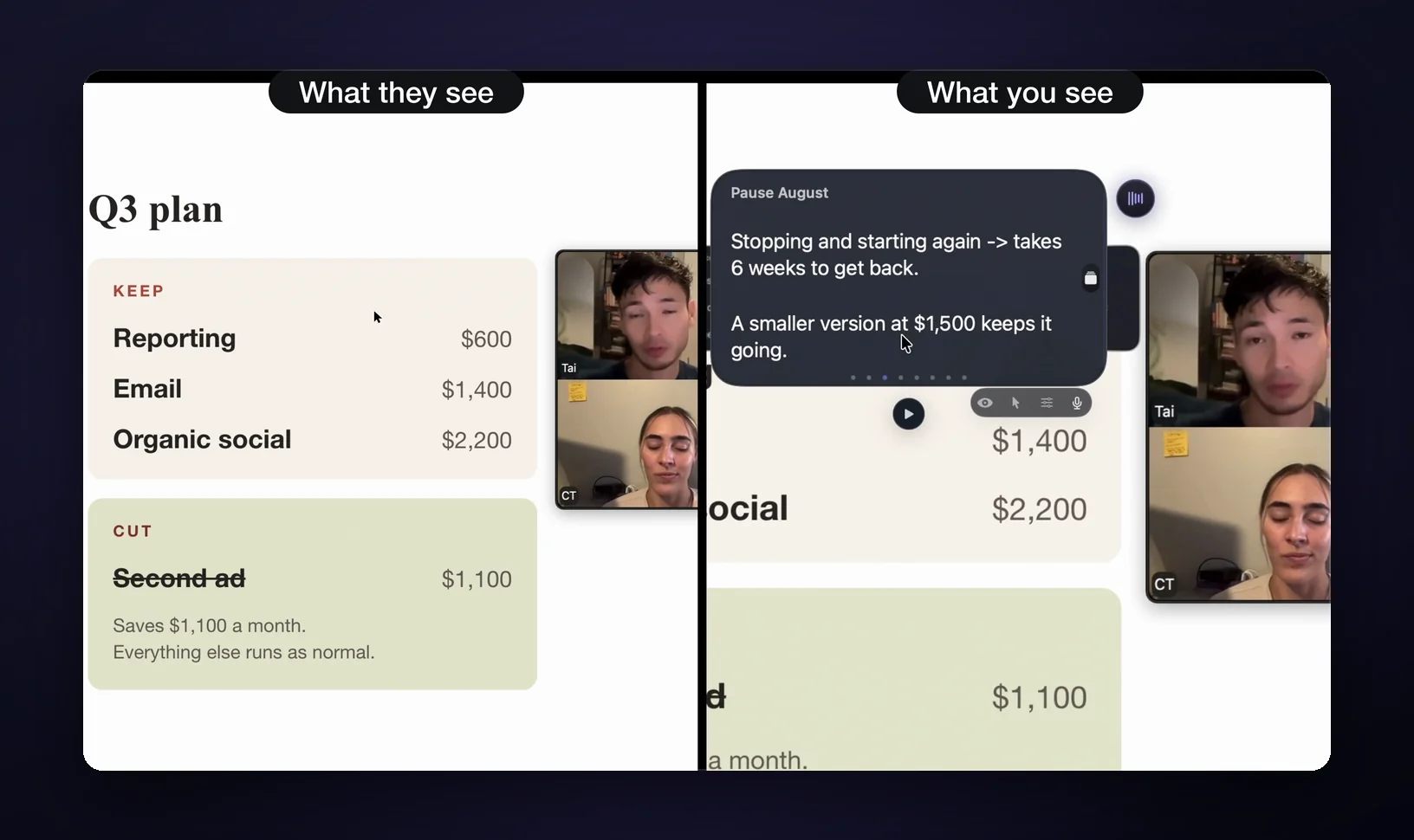
Live Rail: the right note comes up when the topic does
Live Rail is the one thing on this page that reacts to the call itself. GlideRail listens in real time, on your Mac, and when someone says words that match one of your sections, it brings that card up as a suggestion beside the one you're reading. One click, or ⌘↩, and you're there. It's a Pro feature and needs an Apple Silicon Mac.
Here's how it fits together. Cue Mode (Pro) turns your note into cards: type # and a heading to start each section. Live Rail builds its trigger words from each section's title plus its most distinctive words. So name sections the way people actually talk: "Budget got cut", "Pricing", "Timeline". When the client says the budget got cut, that card is waiting for you.
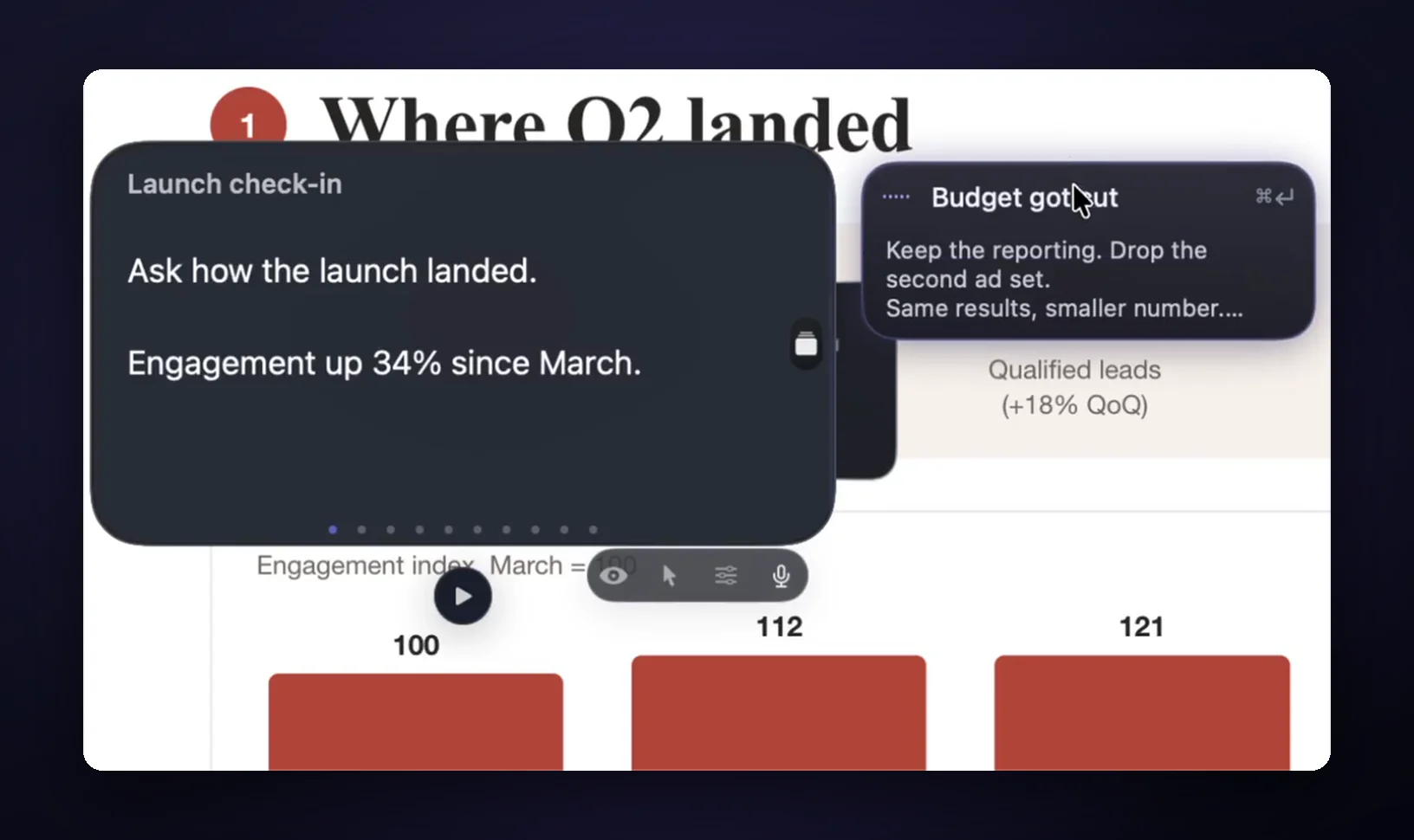
Live Rail hears both sides of the call: your microphone and the call audio. That's the point. The card can come up when they ask, not only when you remember to look for it. You keep talking, glance at the card, and answer with the number you prepared this morning.
What it doesn't do, on purpose: it never flips the card by itself. A suggestion sits there for about 30 seconds; take it or ignore it and it goes away. A wrong card appearing mid-sentence would be worse than none, so you stay in charge of your screen. You can still jump by hand any time with ⌘1–⌘9.
The listening happens on-device: no audio saved to disk, nothing sent over the network. And nothing writes your answers. Live Rail only brings up notes you wrote yourself. Reading a longer passage word for word? Voice Follow (also Pro, also Apple Silicon) keeps your place as you read aloud. More on the full setup in Zoom presentation notes on a Mac.
Three things to be straight about. Invisibility, Cue Mode and Live Rail are paid; on the free tier your windows are visible like any other app's. The voice features need Apple Silicon; on an Intel Mac you get cards and a plain auto-scroll at the speed you set. And invisibility defeats screen capture, not physics: a phone camera pointed at your screen sees everything, GlideRail included.
One more thing: fix the eye-line or nothing else matters
Whatever method you pick, put the words next to the lens. Notes at the bottom of the screen produce the downcast flick everyone recognizes from bad newscasts. Notes beside the camera produce a person who seems to be looking at you. The technique is worth five minutes: how to look at the camera while reading.
FAQ
Can other people on Zoom see my notes app?
Not on a normal call: they see your camera feed, nothing else. It changes when you share: share your entire desktop and every visible window is captured, notes included; share a single window and only that window shows. GlideRail windows are the exception, because the capture itself excludes them.
Does Zoom tell the host which apps I have open?
No. Zoom's only feature in that direction (the attendee attention tracker, which showed hosts whether your Zoom window was in focus) was removed on April 2, 2020. The host sees your name, your video, your audio status, and whatever you share. Nothing lists your windows.
Will my notes show up in the Zoom recording?
Recordings capture meeting content (speaker video, gallery view, and whatever was shared) in Zoom's recording layouts, not your desktop. So notes reach the recording only if they were visible in your share. If they were, even for three seconds, they're in the file permanently.
Is it unprofessional to read notes on a Zoom call?
Having notes isn't the problem. Eye movement is. Nobody objects to you arriving with the numbers ready; they notice eyes tracking side to side away from the lens. Put the notes at the camera and reading looks like speaking. That's preparation, and preparation reads as respect for the meeting.
Can GlideRail bring up the right note when someone asks a question?
Yes, on an Apple Silicon Mac with Pro. Live Rail listens to the call and to you, on-device, and when the words match one of your sections it offers that card with a click to jump. It doesn't switch cards on its own, and it only shows notes you wrote. Name your sections after the questions you expect and it gets the most out of them.
Do these methods work in Google Meet and Microsoft Teams?
All of them except Zoom Notes, which lives only inside Zoom. Paper, a second monitor, and Stickies don't care what app the call is in. GlideRail is also platform-independent: it's excluded at the macOS capture layer, so Meet, Teams, Loom, OBS, and QuickTime all miss it the same way Zoom does.
If your calls matter enough to prep for, download GlideRail free. The notes app costs nothing, forever. There's a 7-day free Pro trial, so install it today and spend the trial on a real call: name your sections after the questions you expect, turn on Live Rail, and see the right card come up when they ask. If it doesn't make your next call calmer, delete it; you've lost nothing.
Written by Takumi Mitchell, maker of GlideRail. Last updated October 2, 2026.