How to Remember What to Say in Meetings (a Pre-Call System)
Published 2026-11-23 · 8 min read
To remember what to say in meetings, write it down instead of holding it in your head. Five minutes before each call, fill a one-pager: opener, three points, the numbers you might be asked, your exact ask, and an empty parking lot. Keep it in your eyeline (paper, a second screen, or a window by the camera) and glance at it.
Disclosure: this post also covers my own app. I created GlideRail, a conversation rail for the Mac, and its Pro tier is paid. The one-pager itself works fine on paper.
Stop rehearsing in your head. Write it down.
Rehearsing in your head leaves you nothing to look at when you blank. In one lab study of choking under pressure, pressure hurt the people with the most working memory, on the hardest math problems, and the authors' explanation is that worry takes up the working memory the task needed. Recalling talking points on a call isn't a math problem, but the same squeeze is a plausible reason points you knew can vanish when someone senior joins. I go through it in why your mind goes blank on Zoom calls. And there isn't much room to begin with: Nelson Cowan's review in Behavioral and Brain Sciences puts working memory's limit at about four chunks, so your points, their question and your nerves compete for very little space.
The alternative has a name in cognitive science: cognitive offloading, using the world around you to hold what your head would otherwise juggle. A shopping list is offloading. So is a one-pager: it doesn't depend on recall, which is the part pressure gets to.
What goes on the one-pager?
The meeting one-pager holds five sections: a word-for-word opener, three one-line points, the numbers you might be asked, your ask as an exact sentence, and an empty parking lot. One page, not a document: a map you can reload in a two-second glance.
Here it is as a blank template to copy into whatever you use:
Opener (word for word):
Points: 1)            2)            3)
Numbers (as of date):
Ask (one sentence):
Parking lot:
1. Opener. The first twenty seconds, written out word for word. It's the only part you script: a set first line gets you past the opening seconds without improvising. "Thanks for the time. I want to cover three things and leave ten minutes for questions" also quietly hands you the agenda.
2. Three points. One line each, leading with the noun or the number. Three is the discipline: if everything is a point, nothing is, and a seven-item list can't be reloaded in a glance. Cutting to three is the preparation, because the cut forces you to decide what this meeting is for.
3. Numbers they might ask. A figure you knew this morning is easy to lose on the spot. Price, usage, timeline, headcount: whatever this audience usually asks, answered in advance. Two or three entries, each with an "as of" date.
4. The ask. The exact sentence, written out: "Can we get thirty minutes with your CFO next week?" Not a theme. A sentence, so you can say it without improvising.
5. Parking lot. Empty at the start. When a tangent comes up mid-call, it gets one line here and you go back to your points.
The five-minute ritual
Fill the one-pager right before the call, not the night before: one minute for the opener, two for the three points, one for the numbers, one for the ask.
- Minute 1: Write the opener, word for word. Say it out loud once.
- Minutes 2–3: Write the three points. Fight the fourth.
- Minute 4: Fill in the numbers. Look them up now, not live.
- Minute 5: Write the ask as one sentence. Add the empty parking-lot heading.
Why five minutes and not thirty: calendars are full. For context, Microsoft's Work Trend Index (2022) found that since February 2020 the average Teams user's number of weekly meetings had risen 153%. My bet is that a prep habit has to be this small to survive a week like that. For a first sales call, where you need more than one page, the discovery call prep guide has the longer version.
Where the page lives
A meeting one-pager can live in three places during a call: on paper next to the keyboard, on a second screen or in Split View, or in a window right under the camera. Each one trades eye contact, crash-proofing and screen-share safety differently:
| Where the page lives | Good | Bad |
|---|---|---|
| Paper next to the keyboard | Zero setup. Can't crash. Never appears in a screen share. | Your eyes drop off camera at each glance. No room for backup numbers. |
| Second screen or Split View | Big type, room for backup material. Free with hardware you own. | Your eyes drift sideways on camera. One wrong click while sharing and your page is on their screen. |
| A window right under the camera | Sits in your eyeline, next to the lens, so a glance stays small. | It covers a bit of your screen, and an ordinary window shows up the moment you share that screen. Keeping one out of shares takes an app built for it (GlideRail does it in Pro). |
For calls where you won't share your screen, paper is enough. An agency seller in a Reddit thread about sales calls put it as "Seriously just write it on a sticky note and put it on your monitor", and for camera-only calls that's hard to beat.
The window by the camera wins when eye contact matters or you're driving a demo, and its weak spot is the screen share. That's the gap GlideRail is built for. Its windows sit above the call, and with Pro they stay out of what Zoom, Meet, Teams, Loom, OBS and QuickTime capture, so a shared screen or a recording shows everything except your page. In Zoom, set Settings, Share Screen, Advanced to "Advanced capture with window filtering" first. The free version floats the same way and holds the whole one-pager; it's just visible in shares like any other window. The honest limit: a phone camera pointed at your physical screen sees everything.
The one-pager as cards
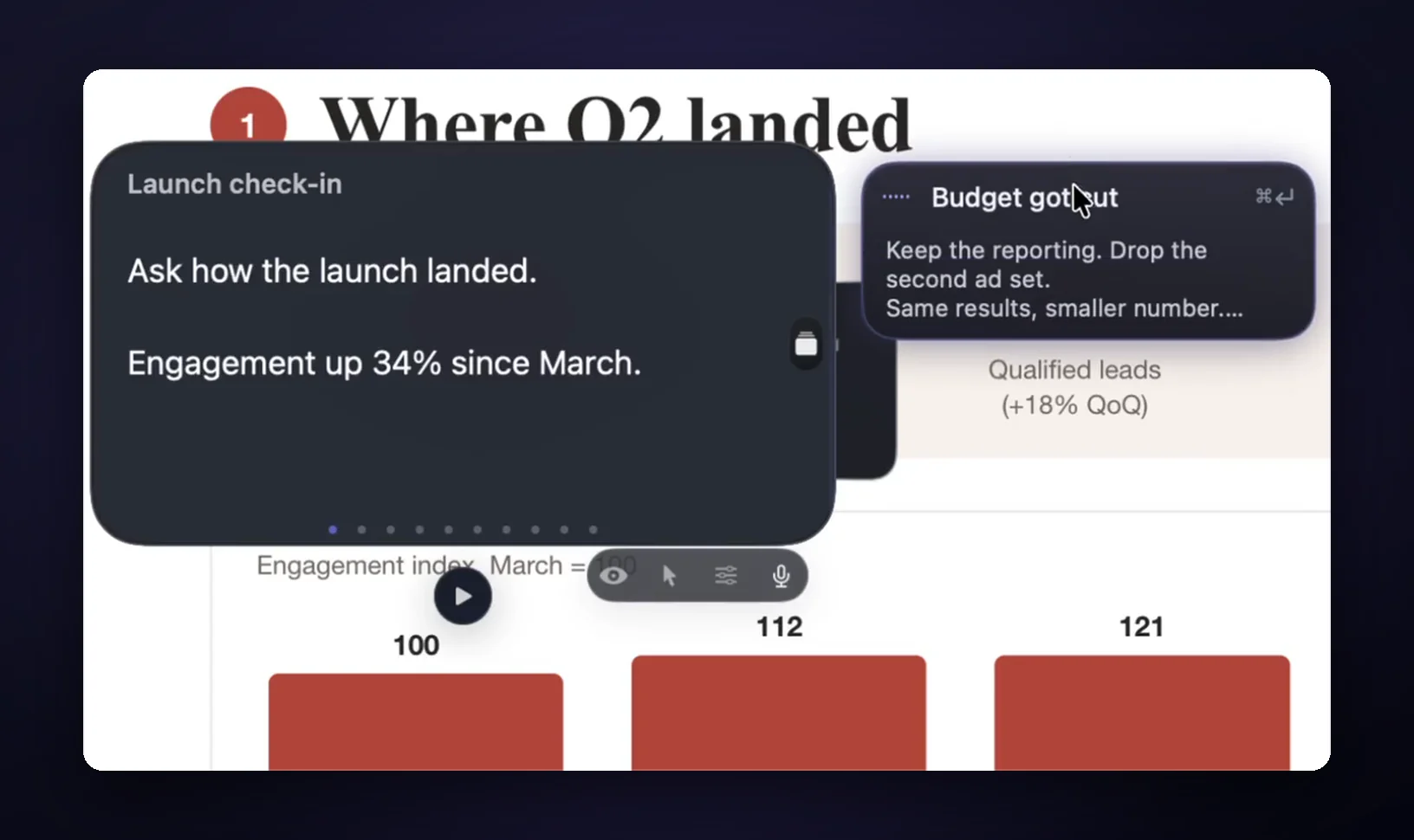
The five sections map straight onto Cue Mode (Pro). Type # and a heading for each section (Opener, Points, Numbers, Ask, Parking lot), and each one becomes a card you can park under the camera and move through with ⌘[ and ⌘] or ⌘1–⌘9, without hunting through a long note.
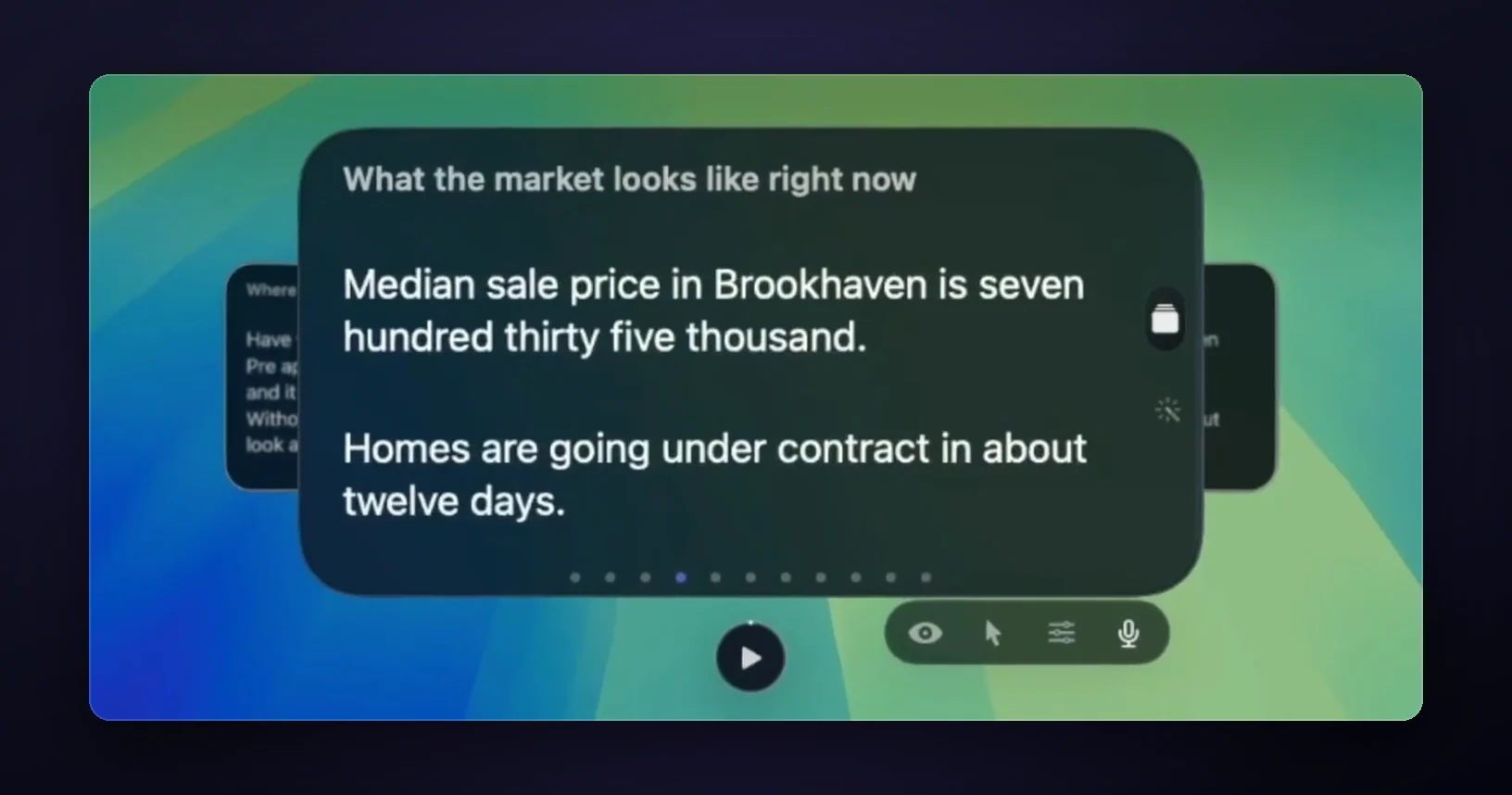
On Apple Silicon Macs, Live Rail can do the hunting for you. Once you arm it for the call, it listens for words from your card headings, with speech recognition that runs on your Mac, and when the call reaches one it offers that card in a small chip. One click jumps there; it never moves the card on its own. Because it matches heading words, name cards with the words the client will say: a card headed "Price" can come up when the client says price. To hear the other side of the call it needs the Mac's Screen Recording permission.
Title each note date first
Name every meeting note the same way, date first and then who or what, so you can find last quarter's page when the same client calls again.
Use [date] [who/what], like 2026-08-12 Acme renewal. In GlideRail: one note per meeting, pin the day's calls so they sit at the top of the sidebar (pinning is free), and when Acme calls again, search "Acme" to pull up the old note and start the new one-pager under it; last time's parking lot is a good start on the next agenda. And ⌘' hides and unhides every GlideRail window at once.
Any app you keep notes in can run this convention. The naming and the one-note-per-meeting habit matter more than the tool.
What this system won't do
The one-pager holds your points, your numbers and your ask, and nothing else. It won't fix rambling, stand in for knowing your material, carry a long recorded talk, or get you through a high-stakes interview on its own.
Rambling first: once you're off the page, the parking lot helps and discipline does the rest. Knowing your material is still your job. The numbers section holds figures you already own; if the knowledge isn't there, no note format makes it up.
Long recorded talks are a different job too. A one-pager is for conversation, and reading 20 minutes of continuous material takes different tools; that line is where teleprompters and hidden notes diverge. And a high-stakes interview needs more than one page (stories, questions to ask, salary numbers), which the interview cheat-sheet guide covers.
FAQ
How do I prepare for a meeting in five minutes?
Fill one page in this order: your opening twenty seconds word for word, three one-line points, the two or three numbers this audience usually asks, your ask as an exact sentence, and an empty parking-lot heading. Say the opener aloud once. Do it right before the call, not the night before.
Should I write a full script for important meetings?
No: script only the opener. A full script read aloud tends to sound read, and a memorized one runs in order, so losing your place can cost you what comes after. Three points have no order to lose. High stakes should tighten your points, not lengthen them.
Where should I keep notes during a video call?
Paper by the keyboard if you'll never share your screen: it's free and can't crash. A window near the lens if eye contact or a demo matters, with the catch that ordinary windows show up in screen shares. A second monitor works but pulls your eyes sideways.
How do I glance at notes without looking like I'm reading?
Keep the page as close to the camera as you can so the eye movement is small, and keep each section to a few lines so the glance lasts two seconds. Glance between sentences, not mid-sentence, and keep each glance short; long stretches of reading off camera are what make it look like reading.
What if someone asks something that's not on my page?
Write it in the parking lot, out loud if you like ("good question, let me make sure I follow up on that"), and answer what you can. Following up beats making up a number you'll have to correct by email.
If the window by the camera fits how you work, GlideRail is a free download for Mac. The free version holds the whole one-pager and stays free. Cue Mode, Live Rail (Apple Silicon only) and staying out of screen shares are Pro, and the 7-day free Pro trial is the way to try them before a call that matters.
Written by Takumi, maker of GlideRail. Last updated November 23, 2026.