Client Says No Recording or AI Bots? What to Use on Your Mac
Published 2026-11-12 · 7 min read · Competitor facts last checked 2026-11-12
If a client doesn't allow recording or AI bots, you can still keep your prep on your own screen, because a note you typed earlier records nothing. On a Mac, Stickies with Float on Top is free and does the job. Skip anything that transcribes the call, and check what the client's rule covers before you add an app.
One disclosure: I created GlideRail, a conversation rail for Mac whose windows are invisible to screen capture. Some of its features listen to the call, so this post says exactly which ones to leave off. For most people with this problem, Stickies is enough. I'm not a lawyer, and this isn't legal advice.
- The options at a glance
- What does a no-recording rule cover?
- What's the simplest way to keep your prep in view?
- Which floating apps are safe under this rule?
- What to do if you share your screen on these calls
- How do you use GlideRail with nothing listening?
- Which one should you pick?
The options at a glance
| Option | Cost | Records or transcribes? | Stays out of a full-screen share? | Watch out for |
|---|---|---|---|---|
| Paper beside the keyboard | Free | No | Yes | Your eyes drop |
| Stickies, Float on Top | Free, built in | No | No | It shows in a full-screen share |
| Second display or an iPad | What you already own | No | Yes, if you share the other screen | Your eyes leave the camera |
| NotchPrompter | Free on GitHub | Has voice activation, so leave that off | Says it's not visible on screen recording apps | Installed from GitHub, not the App Store |
| Teleprompter: Floating Notes | Free, paid plans to $39.99 | Has an AI scrolling mode and video recording, so leave those off | Listing doesn't say | Listing mentions iCloud sync; check it if your prep is confidential |
| GlideRail | Free app; cards and invisibility need Pro | No, with Live Rail and Voice Follow off (both off until you click them) | Yes, with Pro (on Zoom, with Advanced capture with window filtering) | Turning on Voice Follow can switch Live Rail on, so leave both off |
Rival details are from their own listings as of November 12, 2026.
What does a no-recording rule cover?
Rules vary, but many cover three things: saving the audio or video, a bot joining the meeting, and sending the words to an AI service. Typed notes aren't recording, but the client's wording decides. Some clients go further and ban any tool that listens, or any AI at all, so read the wording or ask.
A one-line question settles it: "I keep my own prep notes on my screen during calls. Nothing records or listens. Is that fine with you?" Then you know.
What's the simplest way to keep your prep in view?
Open Stickies, paste your talking points in, and choose Window, then Float on Top, as Apple's Stickies guide says. The note then floats over most windows, a Zoom, Teams or Meet window included. A call app in full screen may hide it, so keep the call in a normal window. Drag it up under your camera and shrink it. It's free and it's already on your Mac.
Keep it short. Your opening line, three questions, your numbers, and the next step you want. If the list won't fit in a small Sticky, it won't help you while someone's talking.
The limit is sharing. If you share your whole screen, the Sticky is in the share. Share a single window instead, and the note stays with you.
What to check before using a floating app
A floating app is fine under this rule as long as you leave off anything that hears the call. Some carry voice features: NotchPrompter has voice activation, and Teleprompter: Floating Notes has an AI scrolling mode. Those features listen to you, and in a strict client's eyes that may count.
So check three things before you install one. Does it have a microphone feature, and can you leave it off? Does it send your text anywhere (iCloud sync, for one)? Does it have AI features your client's rule would cover? If the listing doesn't answer, ask the maker or skip it.
What to do if you share your screen on these calls
If you share your screen, your choice is a one-window share or an app whose windows stay out of the capture. A one-window share is free: Zoom, Teams and Meet can all send a single window, and your notes sit outside it. It only gets awkward when you need to move between apps.
An app that stays out of capture lets you share your whole screen. Ask first if the client's rule could cover tools they can't see. If they've said no hidden tools, or would object, don't use one. It's their rule.
The screen sharing post covers each call app's options.
How do you use GlideRail with nothing listening?
GlideRail doesn't listen unless you turn a listening feature on. Two features use the microphone and the call audio: Live Rail and Voice Follow. Both are off until you click them, and both are Pro on Apple Silicon. Cue Mode's cards, the window and invisibility don't hear anything, so you can run a call by keyboard.
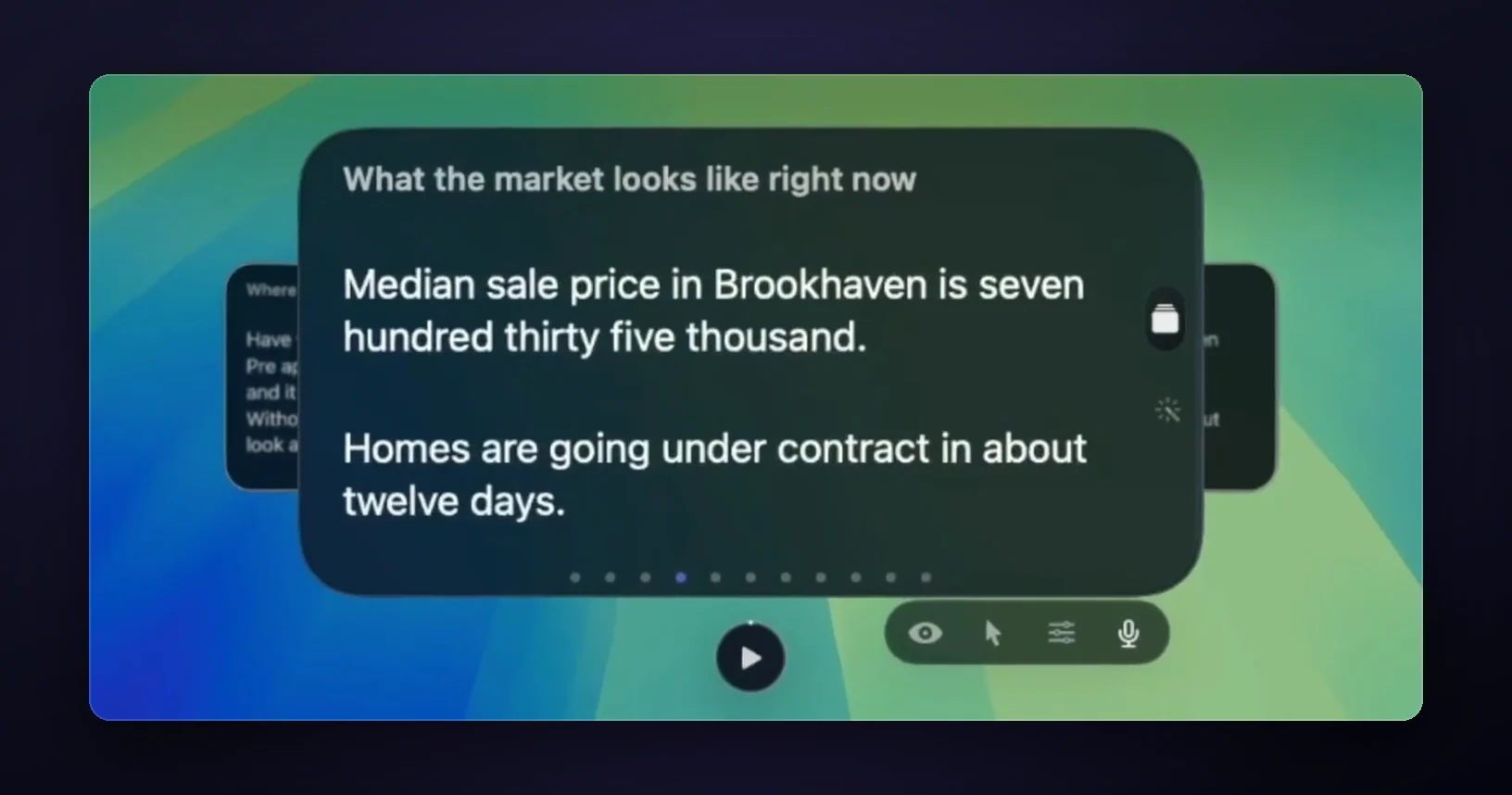
For a strict client, then:
- Paste your prep in, with a
#heading for each topic, and press Split into sections. - Open Cue Mode (Pro). Leave the Live Rail circle off.
- Leave Voice Follow off too. Turning it on can bring Live Rail along with it, once you've given Live Rail its permissions.
- Move between cards with ⌘[ and ⌘], which work from any app while Cue Mode is open.
- If you share your whole screen and the client is fine with tools they can't see, turn on Invisible (Pro). On Zoom, that needs "Advanced capture with window filtering", which the Zoom setting guide shows.
GlideRail has no bot and no account, and your notes are local files on your Mac. The app does send anonymous usage data, which you can turn off, and Pro checks its license about once a day. The privacy policy lists each one; none of them carries your notes or any audio. If you do use Live Rail on a call that allows it, it runs on your Mac, it saves no audio, and no audio leaves your Mac. It's still listening, though, so on these calls it stays off.
There's no generative AI in the app, so nothing writes your answers. The limits: Invisible, Cue Mode and click-through are Pro, the free version shows in shares like any window, and a phone camera pointed at your screen sees everything.
Which one should you pick?
- A few talking points and no screen share: Stickies. Close this page and go.
- You'd rather not look down: put a Sticky under the camera.
- You share one window on these calls: Stickies still works.
- You share your whole screen or several apps, and the client is fine with tools they can't see: GlideRail Pro, with listening off. Plans are $19.99 a month, $99 a year or $249 once.
- The client bans all third-party software on the call: paper.
FAQ
Is keeping notes on my screen the same as recording a call?
No. A note you typed before the call stores nothing from the call. Recording saves audio or video, and a notetaker turns the call into text. A typed note does neither, but the rule's own wording decides what it covers. If you're unsure, ask the client.
Do bot-free notetakers get around a no-AI rule?
Usually not. A notetaker with no bot in the meeting still hears the call and turns it into text, and that's often what the client objects to. Treat those as covered by the rule unless the client says otherwise. Your own typed prep is a different thing.
Can I take notes by hand during the call?
Yes, typing or writing your own notes isn't a recording, and clients expect it. Say so at the start if you'll be looking down: "I'll be jotting a few notes." It takes three seconds and it stops them wondering what you're doing.
Should I tell the client about my notes?
You don't owe a client a list of your notes, any more than they'd ask about a pad on your desk. But if they ask what's on your screen or what tools you use, tell them. Never let a tool put you in a position where you'd need to fib.
Does GlideRail send my notes anywhere?
No sync and no account: your notes are local files on your Mac. It has no cloud for them, and with Live Rail and Voice Follow off, nothing in the app hears the call. Keep the usual care with the file itself if your prep holds client secrets.
Try it on one call
If Stickies does the job, you're done. If you share your screen and move between apps, download GlideRail free. The free version is the whole editor and library, and it stays free. The 7-day free Pro trial covers Cue Mode and invisibility, and if you buy later there's a 30-day money-back guarantee. Set it up with both listening features off, and your next call runs on your prep and nothing else.
Written by Takumi, maker of GlideRail. Last updated November 12, 2026.